Invoicing a saved client from your price list
The formal way to make one: pick a customer you've already saved, build the lines from what you charge for, and get a proper business document with their address and email on it. On every plan. See Creating invoices and quotes for the chat-it-in flow every plan gets. Each step shows the website on the left and the Android app on the right.
-
1. Save the client
On Clients, add their name, cellphone number or email, and their billing address, whatever should print on the invoice. This only needs doing once; every invoice or quote for them afterwards reuses it.
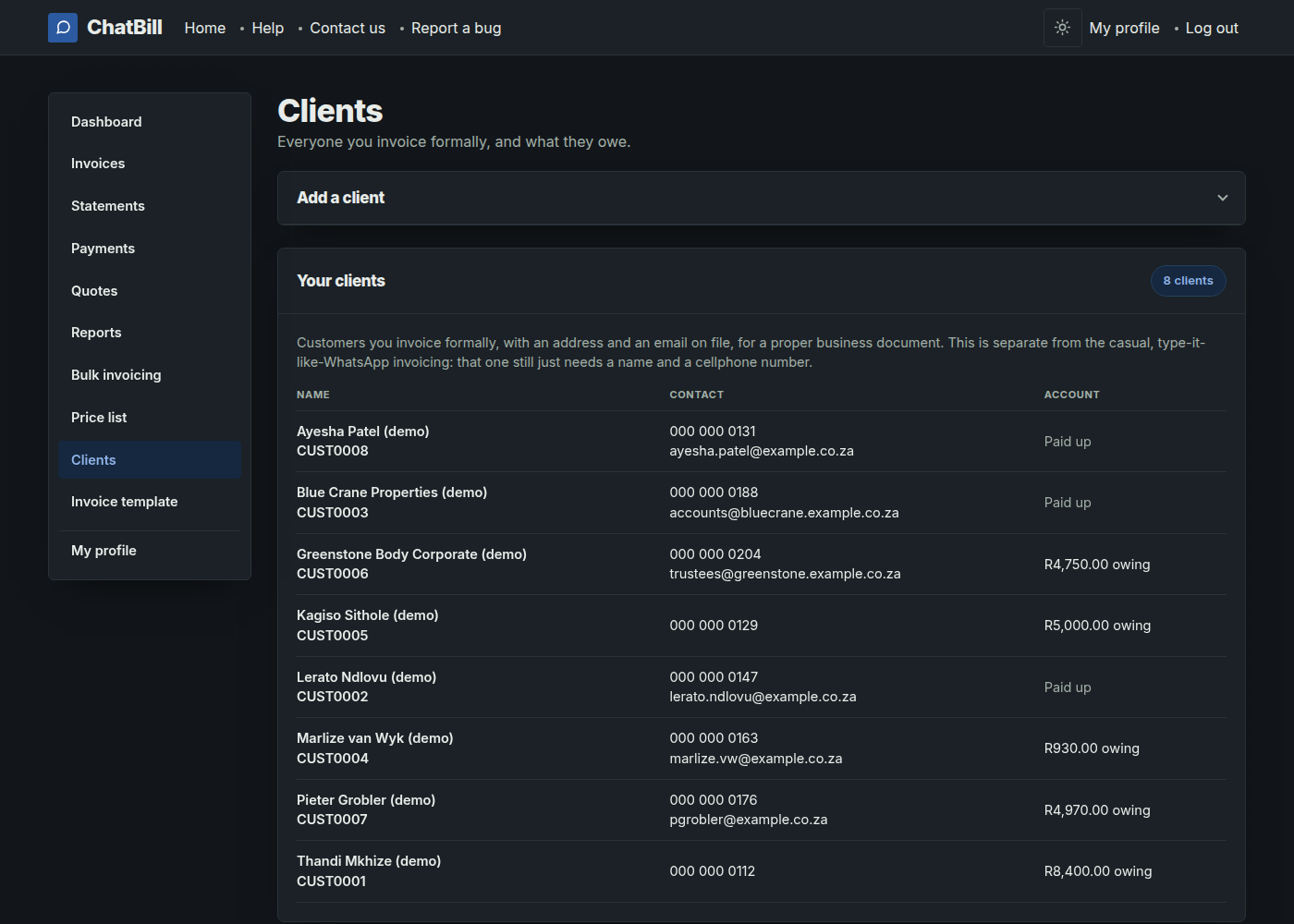 Website
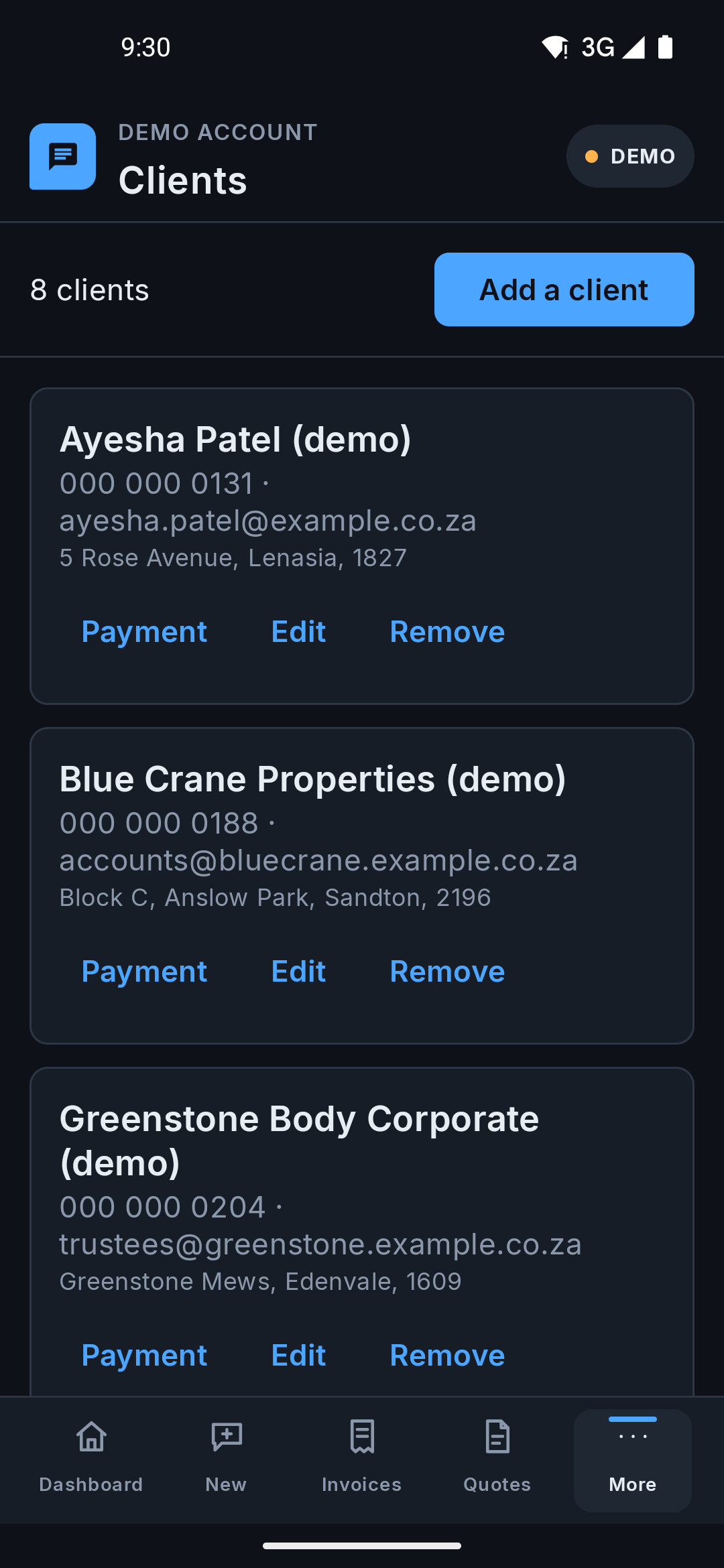 Android app
 -
2. Add what you charge for
On Price list, add a description, a price, and what it's charged per: each, per hour, per day, and so on. The keywords are what the chat matches against, but the same items also show up as a picker here, so it's worth doing even if you never use the chat.
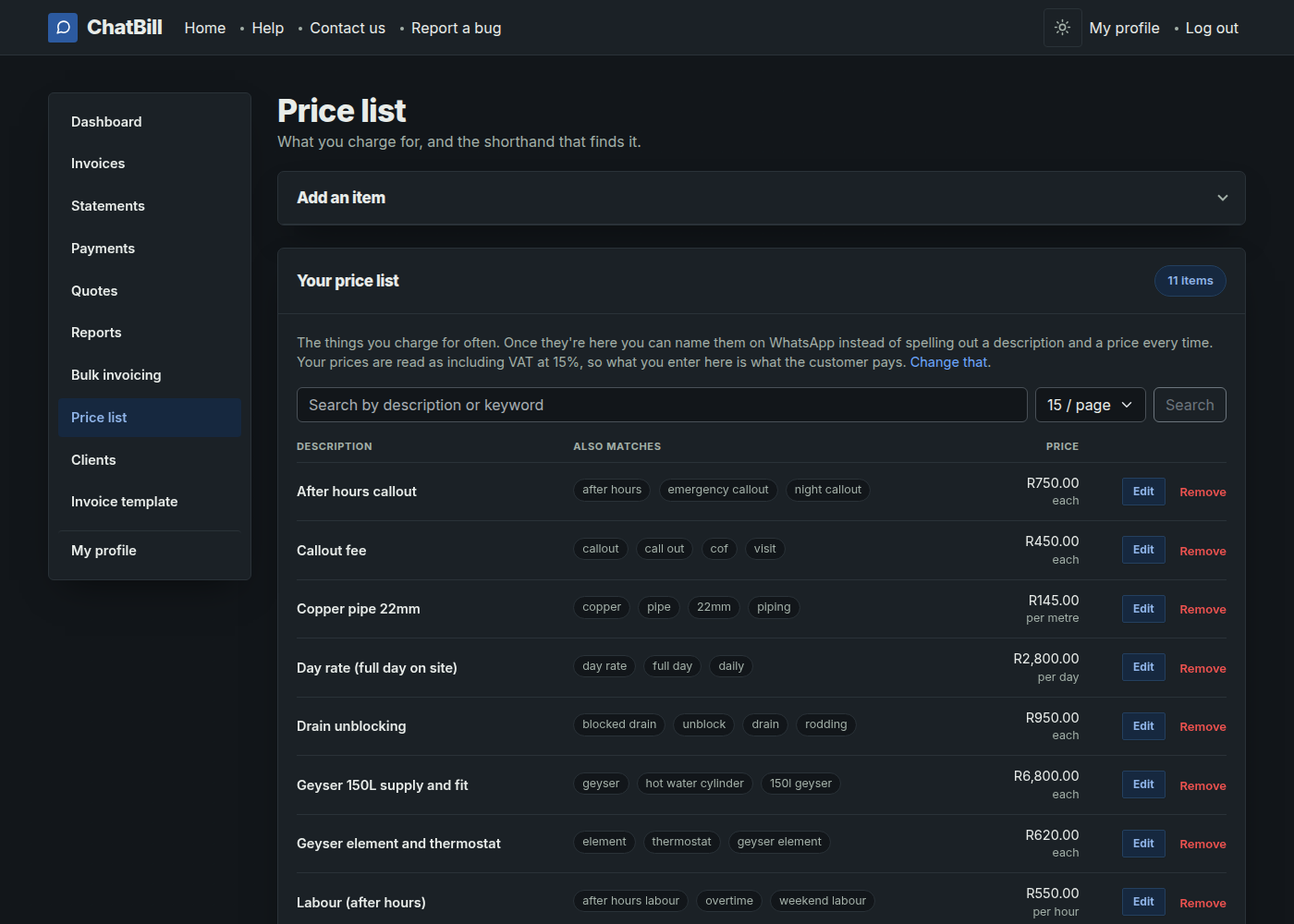 Website
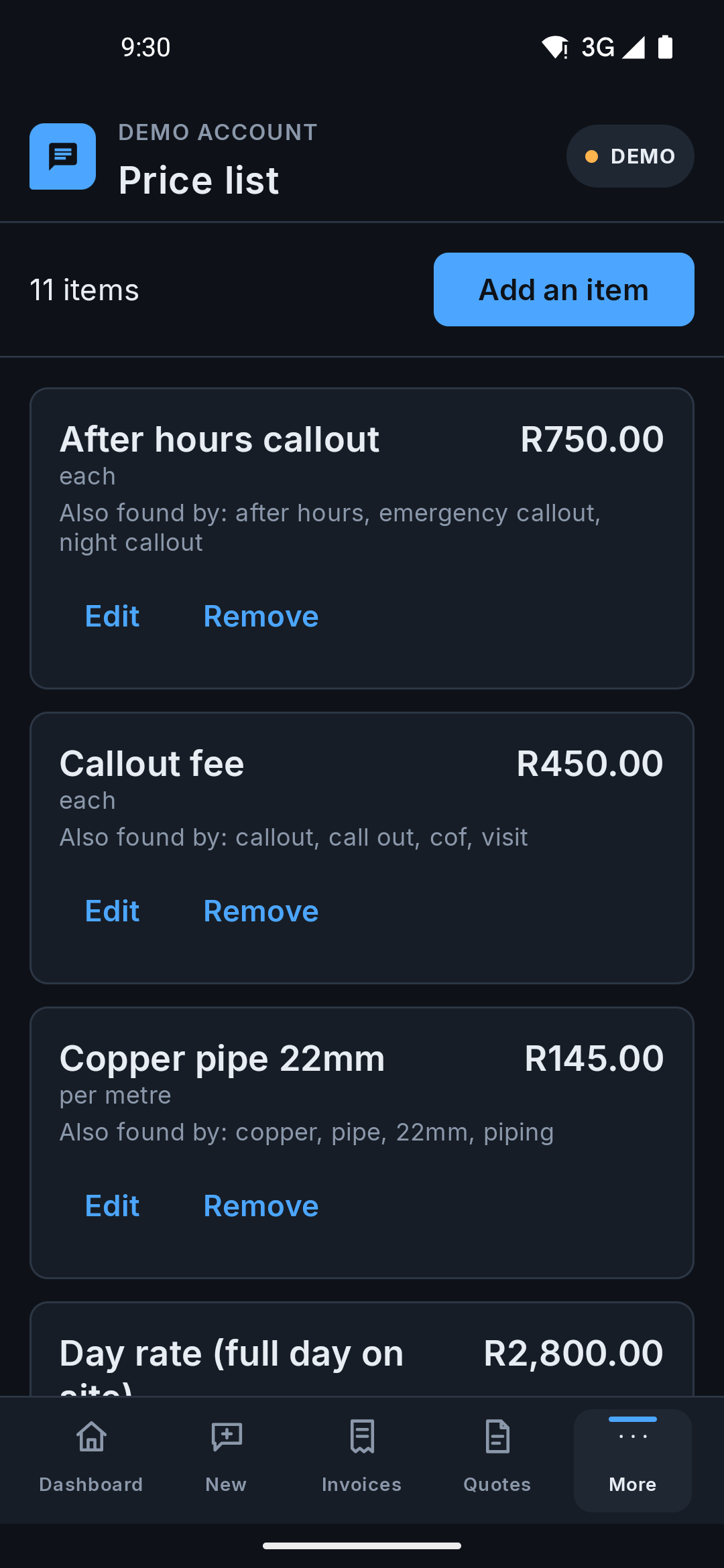 Android app
 -
3. Start the invoice or quote
+ New invoice or + New quote on your dashboard opens the same popup as the chat flow. This time, choose A saved client instead of Chat it in.
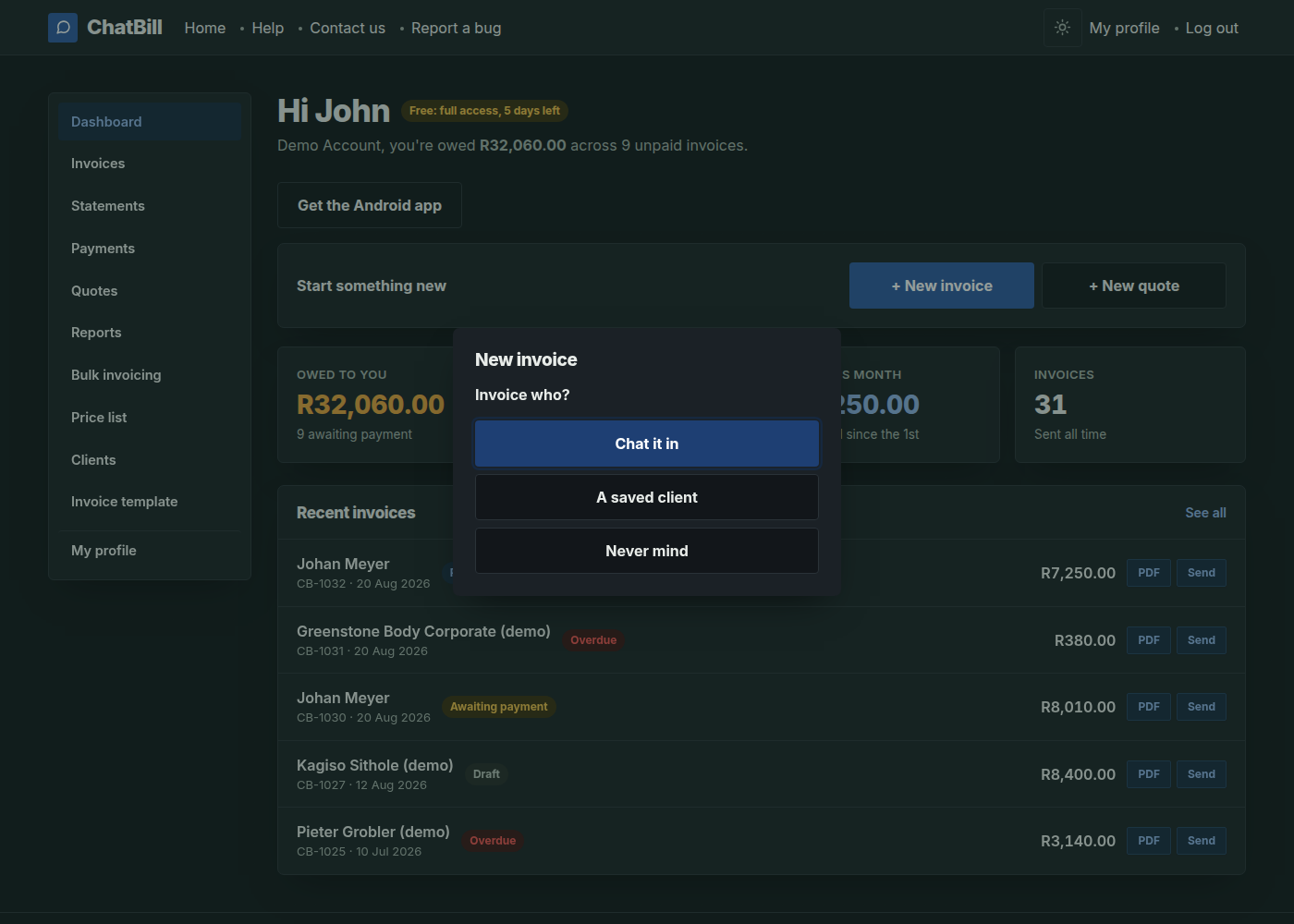 Website
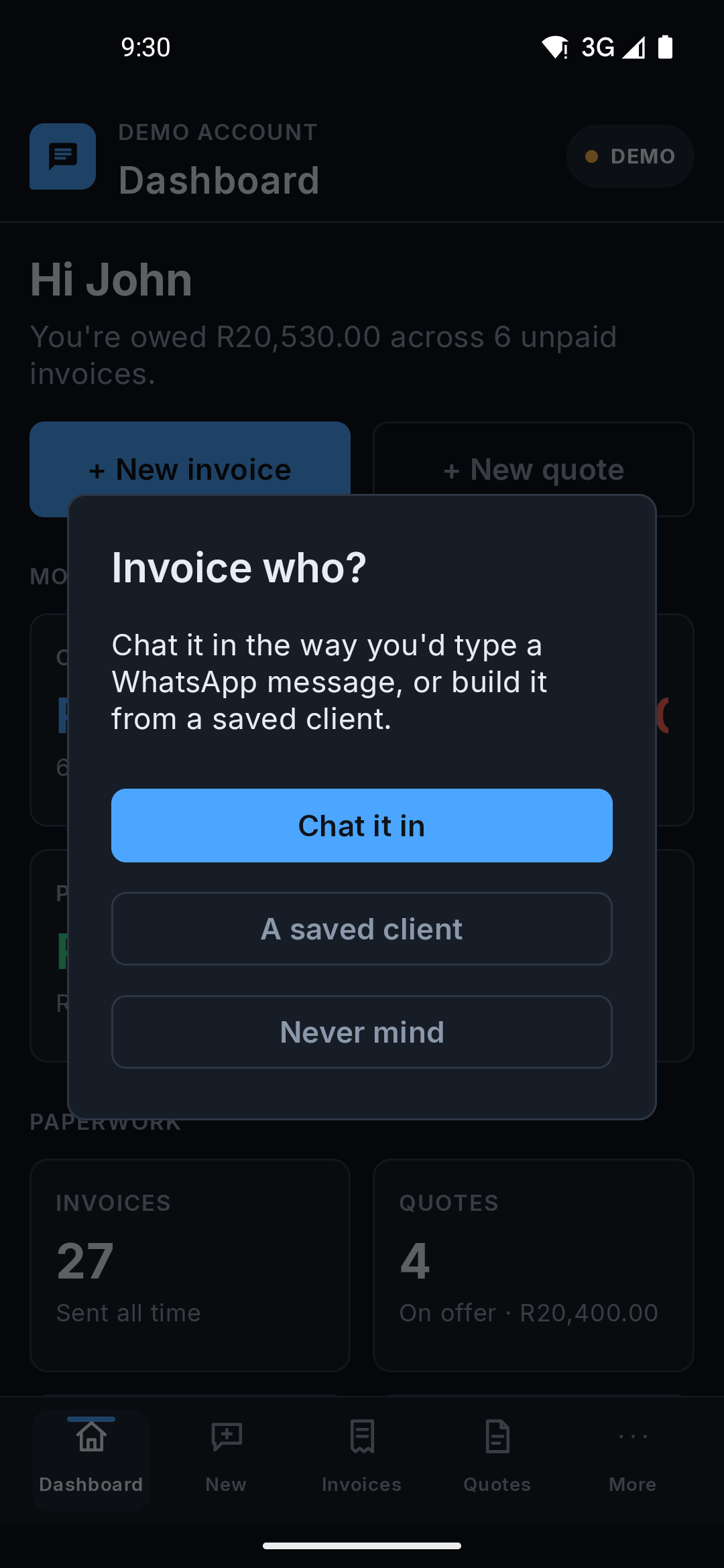 Android app
 -
4. Pick the client and set the due date
Choose who it's for from the dropdown; only saved clients appear here. For an invoice, set when payment is due: in a number of days, on a fixed date, or none at all. A quote instead asks how many days it stands for.
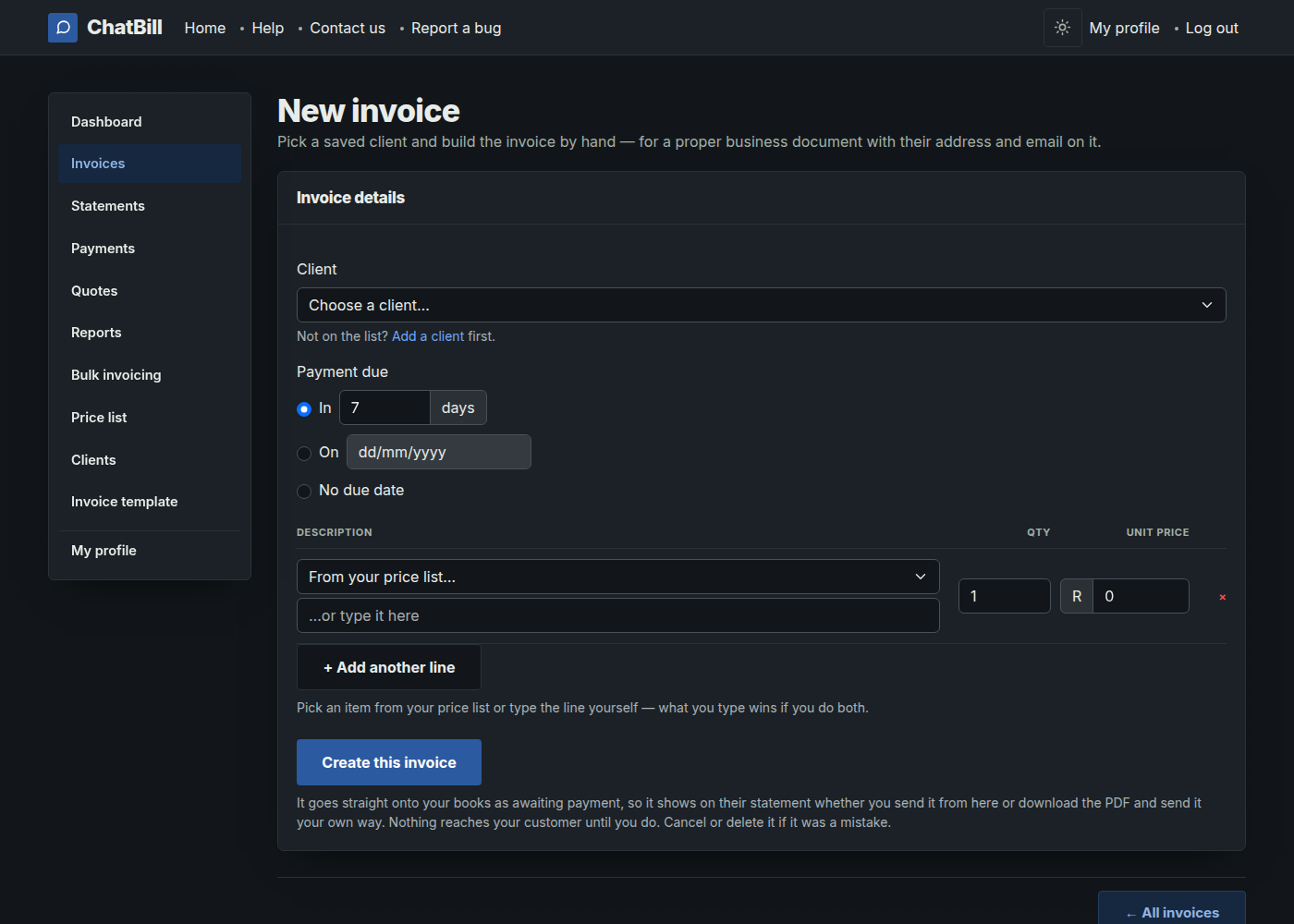 Website
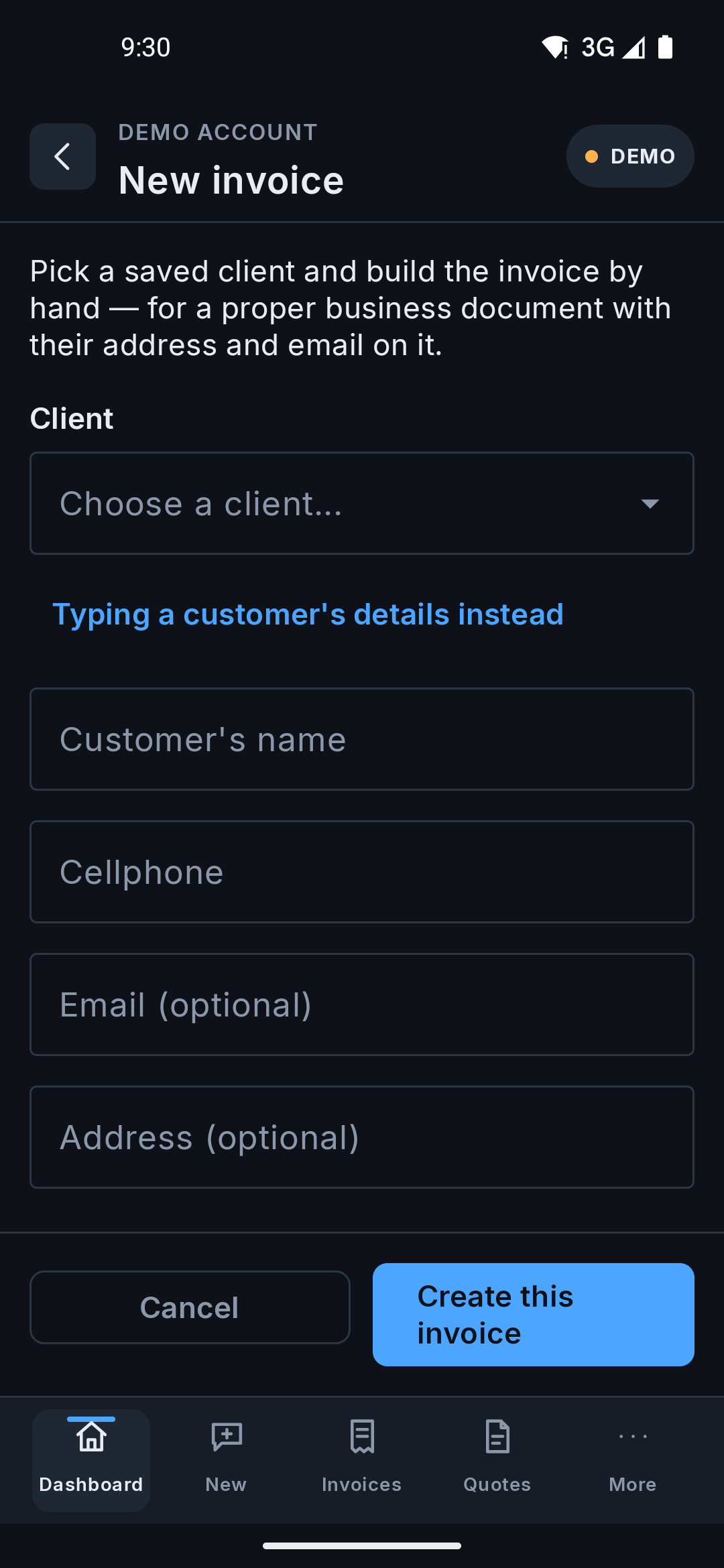 Android app
 -
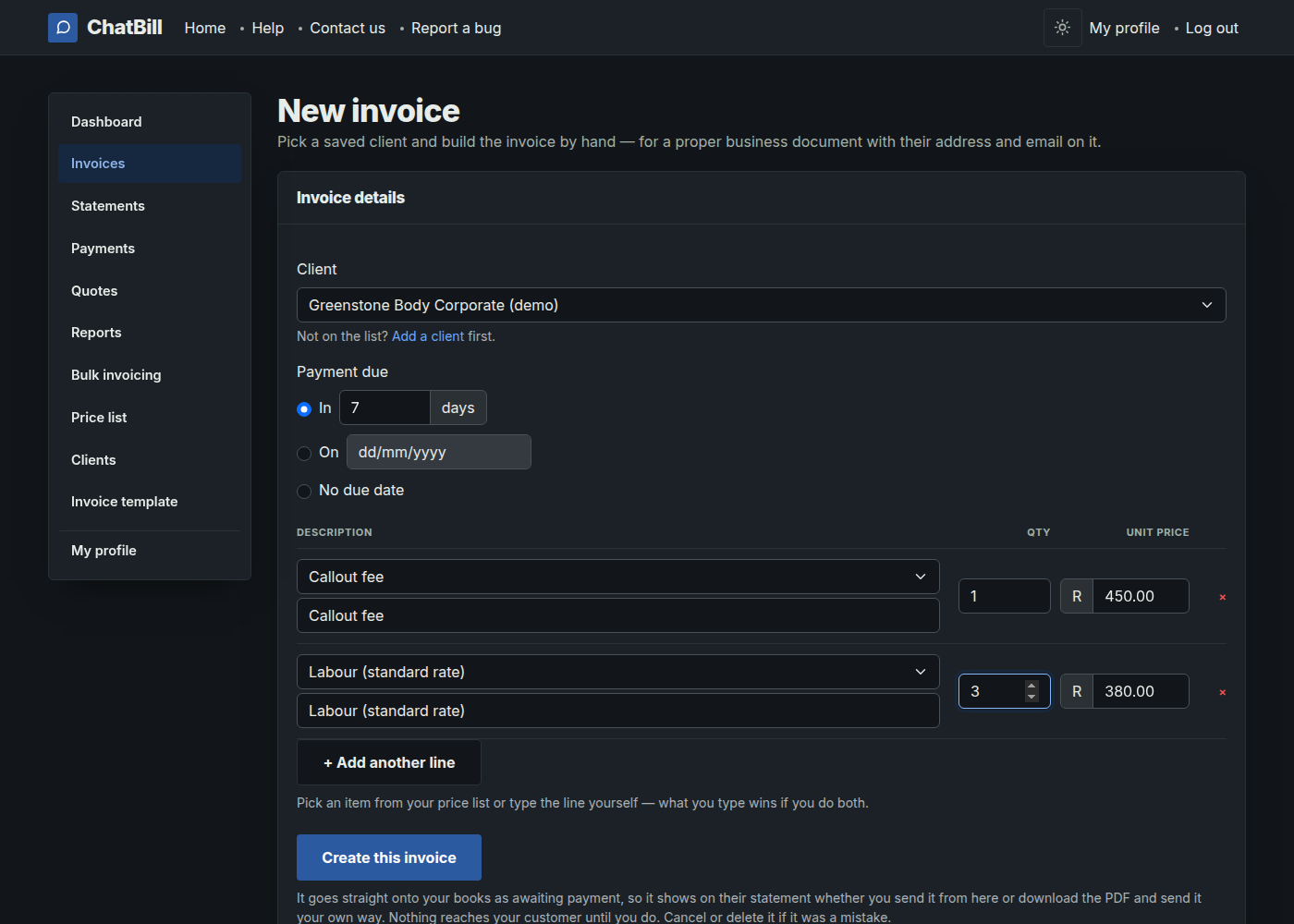
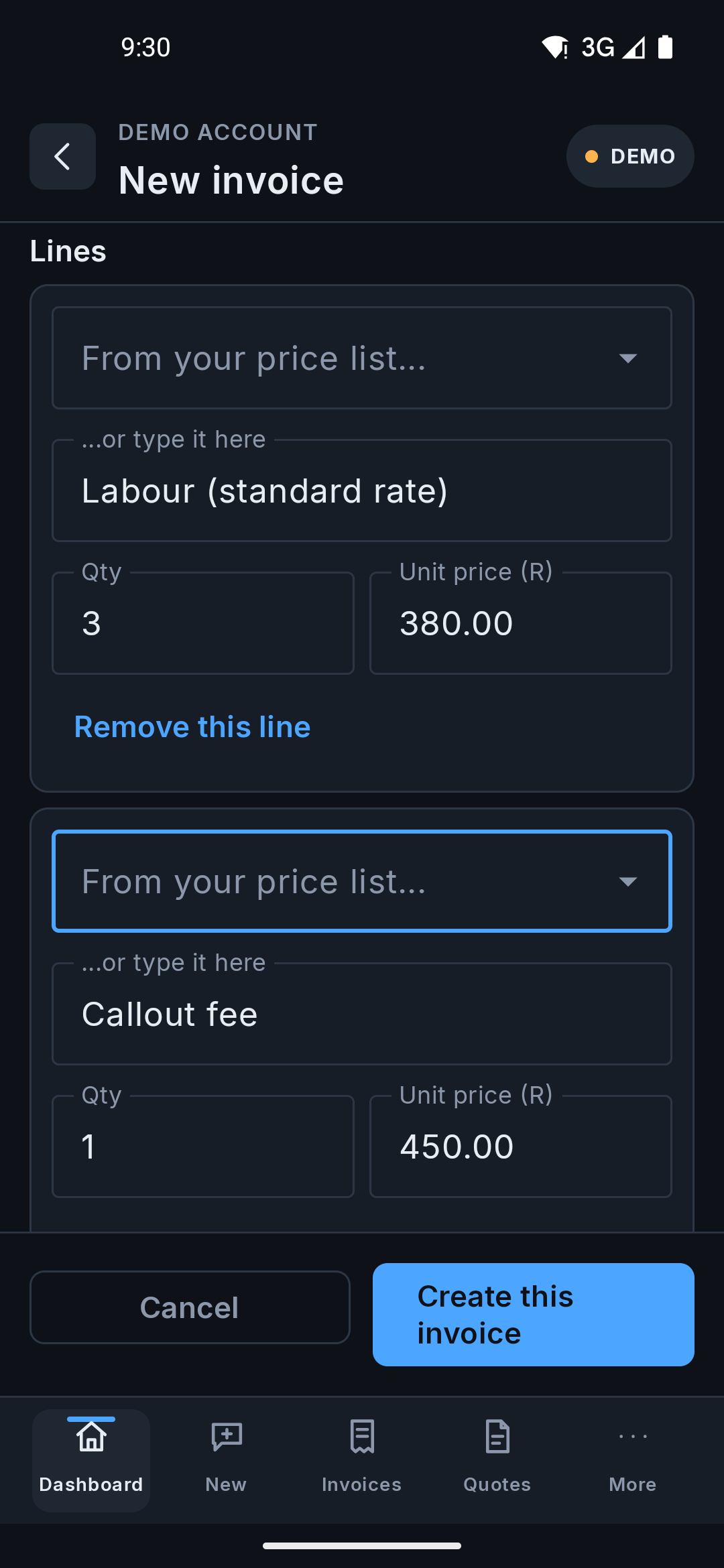
5. Build the lines from your price list
Pick an item and its description and price fill themselves in. Change the quantity to whatever the job needs. + Add another line for anything else, or type a line by hand for something that isn't on your price list.
 Website
 Android app
 -
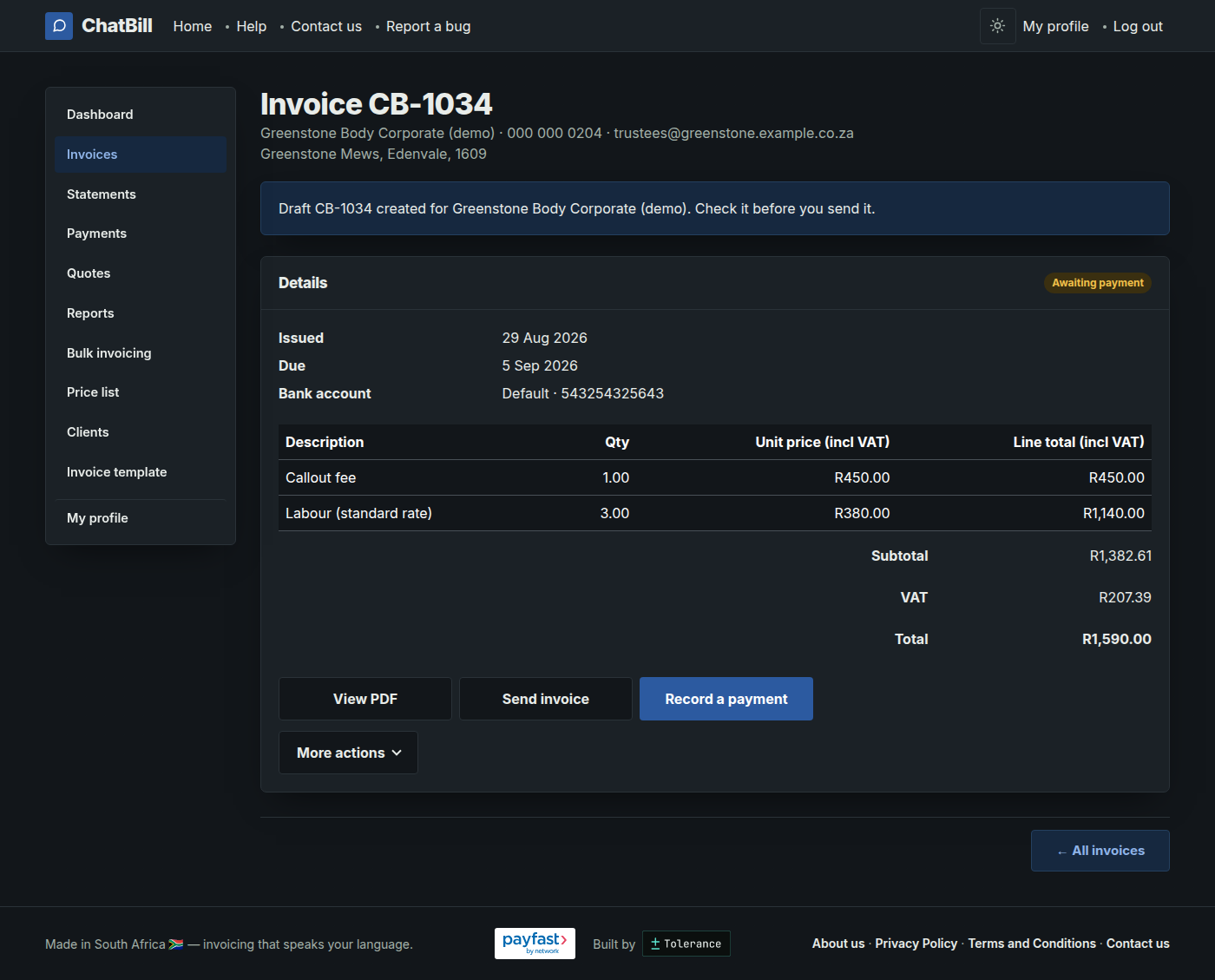
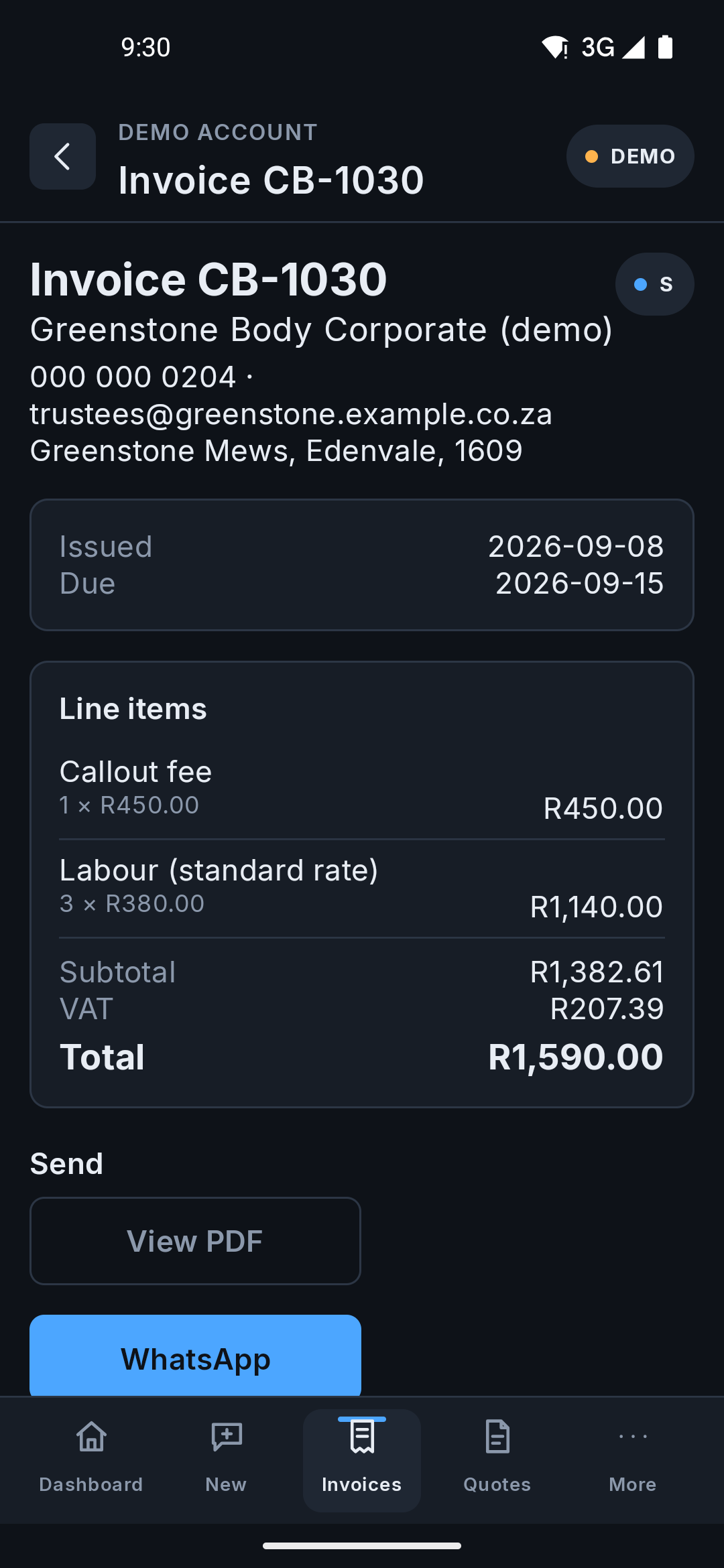
6. Check it, then send it
Create this invoice puts it on your books as awaiting payment; nothing reaches your customer yet. Open it to check the figures, then use Send invoice to email it or send it on WhatsApp, the same as any other invoice (see Creating invoices and quotes), or download the PDF and send it your own way. It counts either way, which is why it doesn't wait: an invoice you sent by your own email is still money you're owed. Cancel or delete it if it was a mistake.
A quote is the same, and starts off waiting on the customer. Nothing is owed until they accept it, so it stays off your invoice totals either way.
 Website
 Android app


