Getting your data out
Two different jobs, two different pages. If you have a bookkeeper or an accountant, the export gives them the year's books in the shape their system wants. If you just want your own copy of everything, that's in your settings and it's yours on any plan.
For your bookkeeper
-
1. Open Reports, then Export
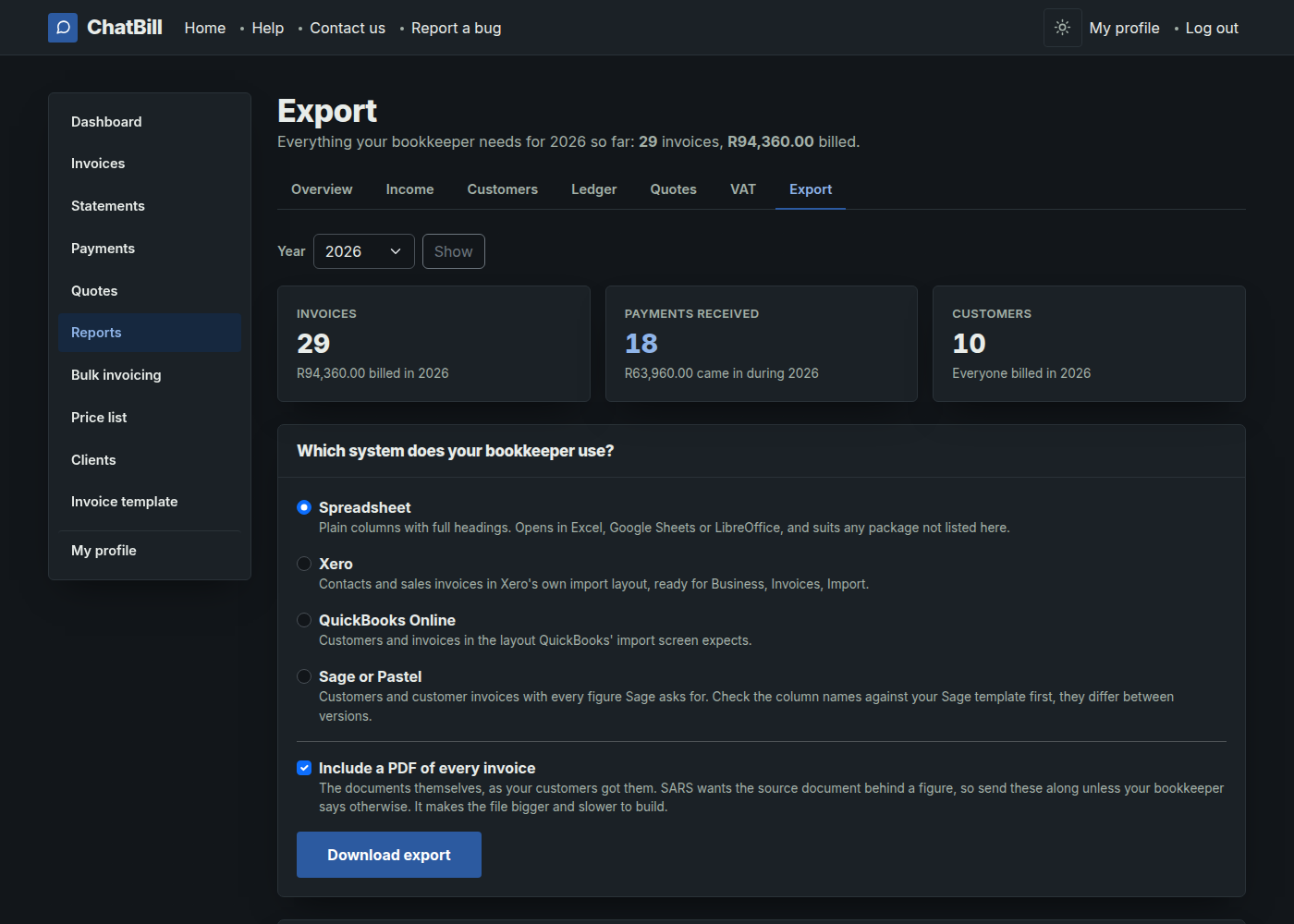
Reports is in your dashboard's quick links, and Export is the last tab across the top of it. Pick the year first, the same picker every other report uses. The page tells you what's in that year before you download anything: how many invoices, what you billed, what came in and how many customers.
Pro, or part of your first couple of weeks on ChatBill.
-
2. Pick the system they use
Ask them which one before you send anything, it saves a round trip:
- Spreadsheet if they work in Excel or Google Sheets, or their package isn't one of the three below. Plain columns with full headings.
- Xero, in Xero's own contacts and sales invoice layout.
- QuickBooks Online, in the layout its import screen expects.
- Sage or Pastel, with every figure Sage asks for. Sage's import template differs between versions more than the others do, so they may need to rename a column or two to match theirs. The README in the file says which.
Include a PDF of every invoice puts the actual documents in alongside the spreadsheets. SARS wants the source document behind a figure, so leave it ticked unless your bookkeeper tells you otherwise. It makes the file bigger and takes longer to build.
-
3. Download it and send it on
Download export gives you one ZIP file. Email it to your bookkeeper as it is, or send it on WhatsApp, it's a normal file. Inside it you'll find:
- The invoices and the customers behind them, in your chosen system's layout.
- payments-received.csv, the invoices that were settled during the year and when. No accounting package imports payments along with the invoices, so this is how they get allocated.
- vat-summary.csv, month by month, for checking the import landed right.
- README.txt, the step-by-step for that system. Tell your bookkeeper to read it first, it names the two or three columns worth checking before they import.
-
What goes in, and what doesn't
Only invoices you sent or were paid for. Drafts and cancelled invoices are left out, because neither one is money you actually billed, and a set of books shouldn't have them in it.
If you're VAT registered, the amounts in the invoice files exclude VAT with the rate carried on each line, because that's the shape every accounting package expects. Your invoices themselves don't change, and the totals in the export always add up to the same figures your customers were billed.
Your own copy of everything
-
1. My profile, then Your data
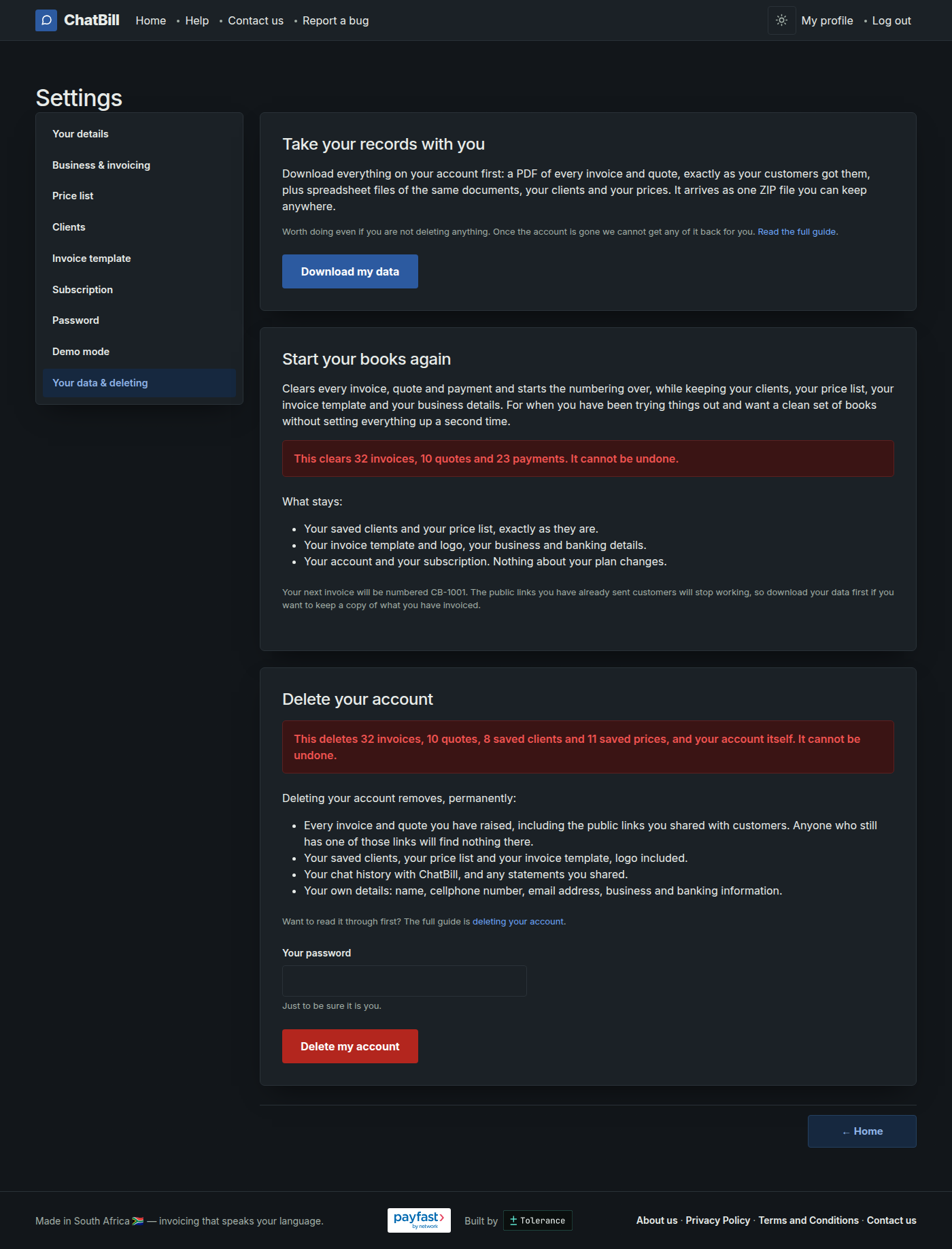
My profile at the top of the page, then Your data & deleting at the bottom of the settings menu. Download my data gives you one ZIP holding a PDF of every invoice and quote you've ever sent, exactly as your customers got them, plus spreadsheet files of the same documents, your clients and your price list.
This one's on every plan, not just Pro. It's your work. Worth doing once a year even if you're not going anywhere.
-
2. Closing the account altogether
The same page is where you delete the account for good, underneath the download. Download first if you are going that way, there's no undo and we keep no copy. That's its own guide: deleting your account.