Statements
One page per customer: everything you've invoiced them, what they've paid, and what's still outstanding. A Pro feature, or part of your first two weeks on ChatBill. Each step shows the website on the left and the Android app on the right.
-
1. Open Statements from your dashboard
Statements sits alongside Invoices and Quotes in your dashboard's quick links. The list shows every customer you've invoiced, how much they owe, and whether anything of theirs is overdue.
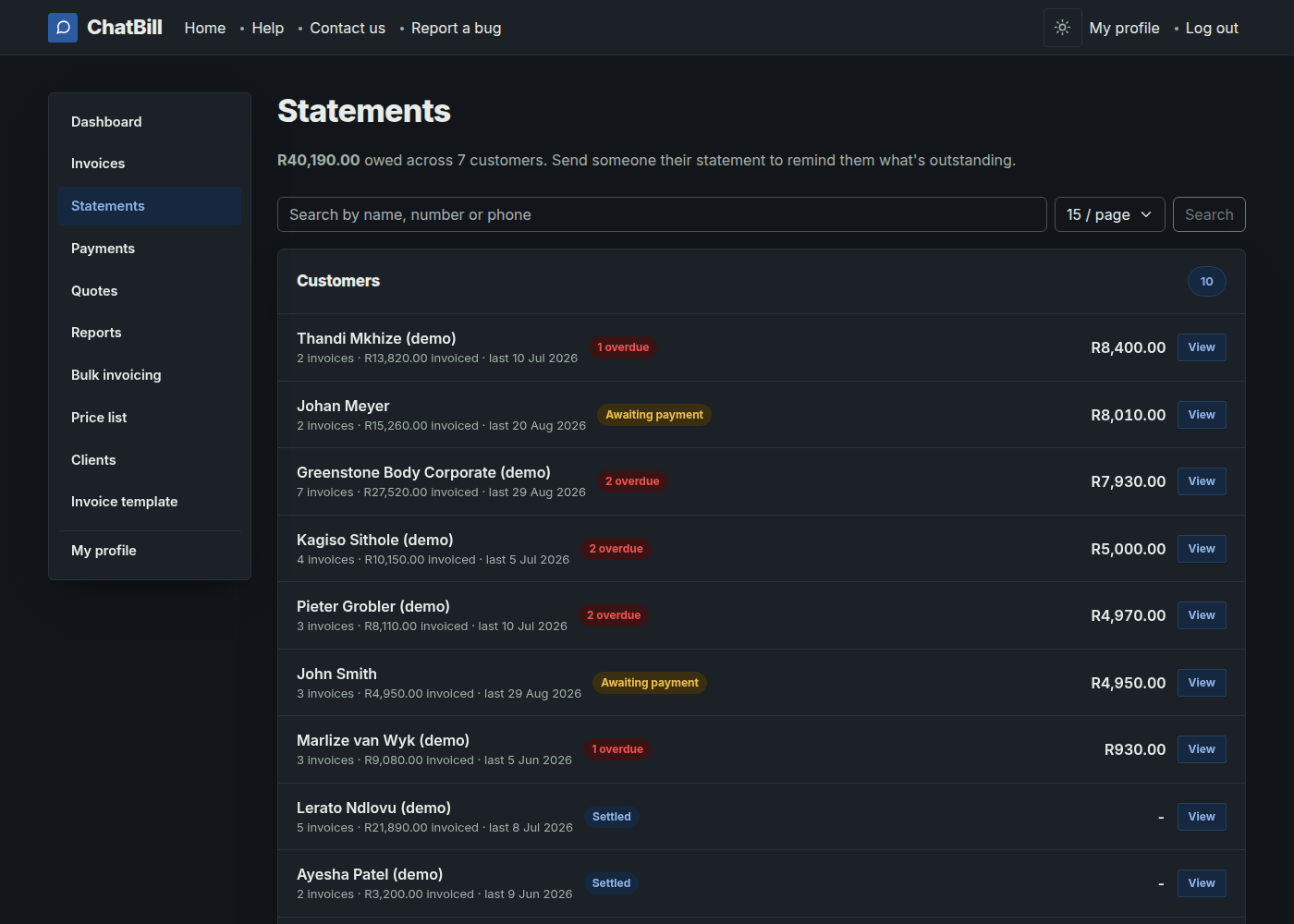 Website
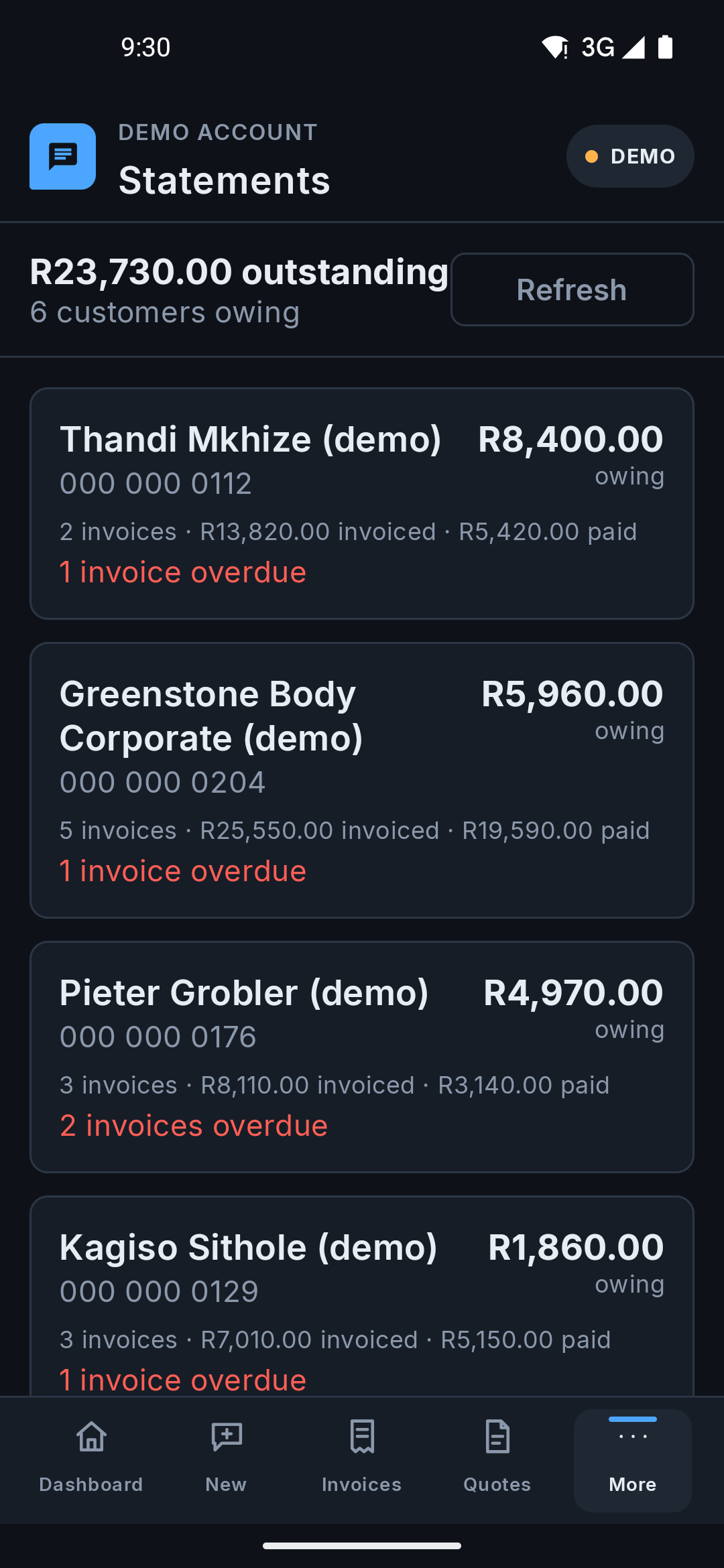 Android app
 -
2. See what they owe, and send it
Open a customer to see the full picture: total invoiced, total paid, and the balance due, with every invoice listed underneath. Send statement emails or WhatsApps the PDF, the same as any invoice or quote.
If they still owe something, Remind on WhatsApp or Remind by email sends a short nudge instead, the balance and a link to the statement, without attaching the full PDF.
The statement opens on the month you're in, and the month picker takes you back through older ones. For a stretch that doesn't line up with a month, one job's deposit to its handover, say, use Your own dates next to the month picker (on the app, it's inside the picker) and the PDF you send covers exactly those dates.
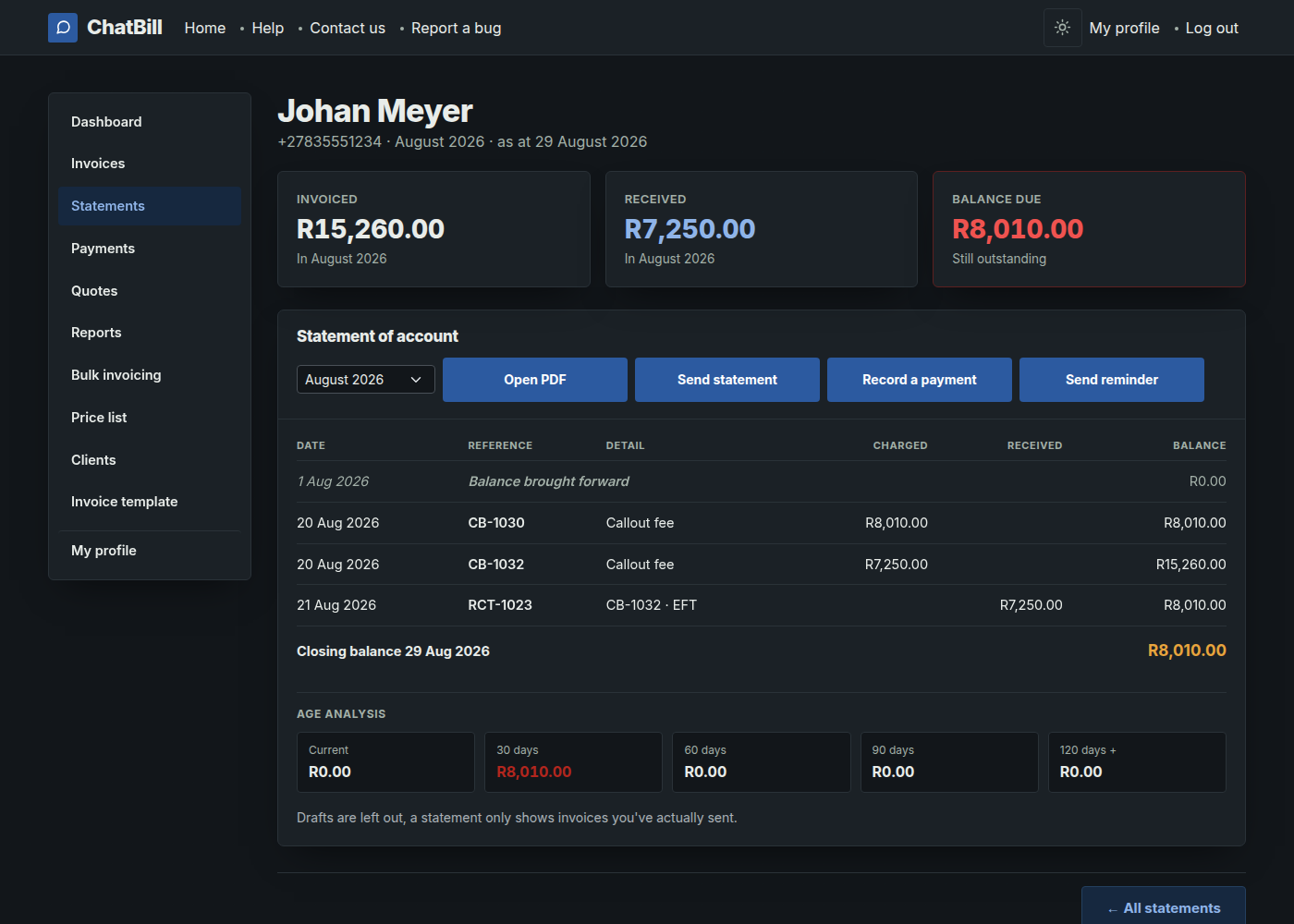 Website
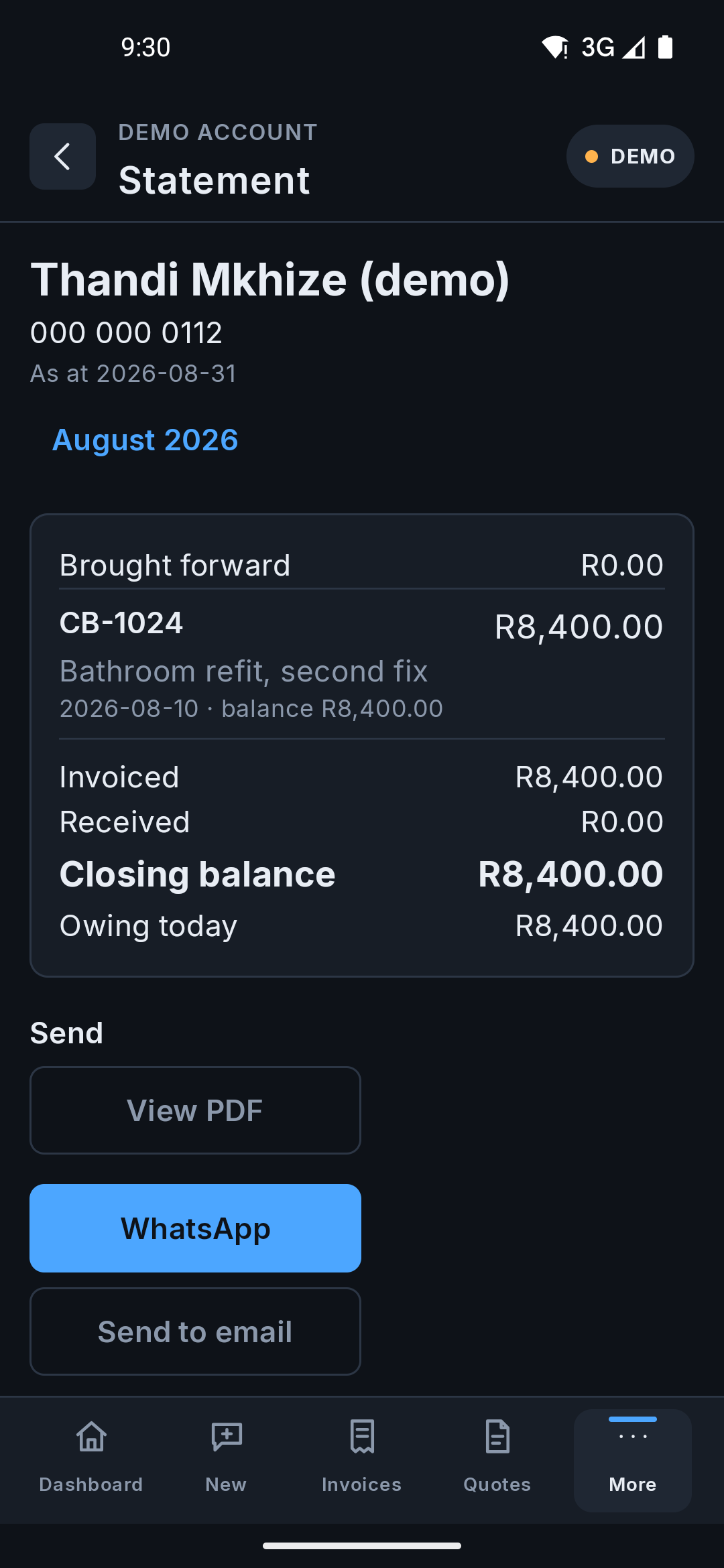 Android app

