Payments: getting paid and keeping track
Recording money against an invoice, taking a deposit or a part payment, and putting one EFT against several invoices at once. A Pro feature, or part of your first two weeks on ChatBill. Each step shows the website on the left and the Android app on the right.
-
1. The whole amount came in
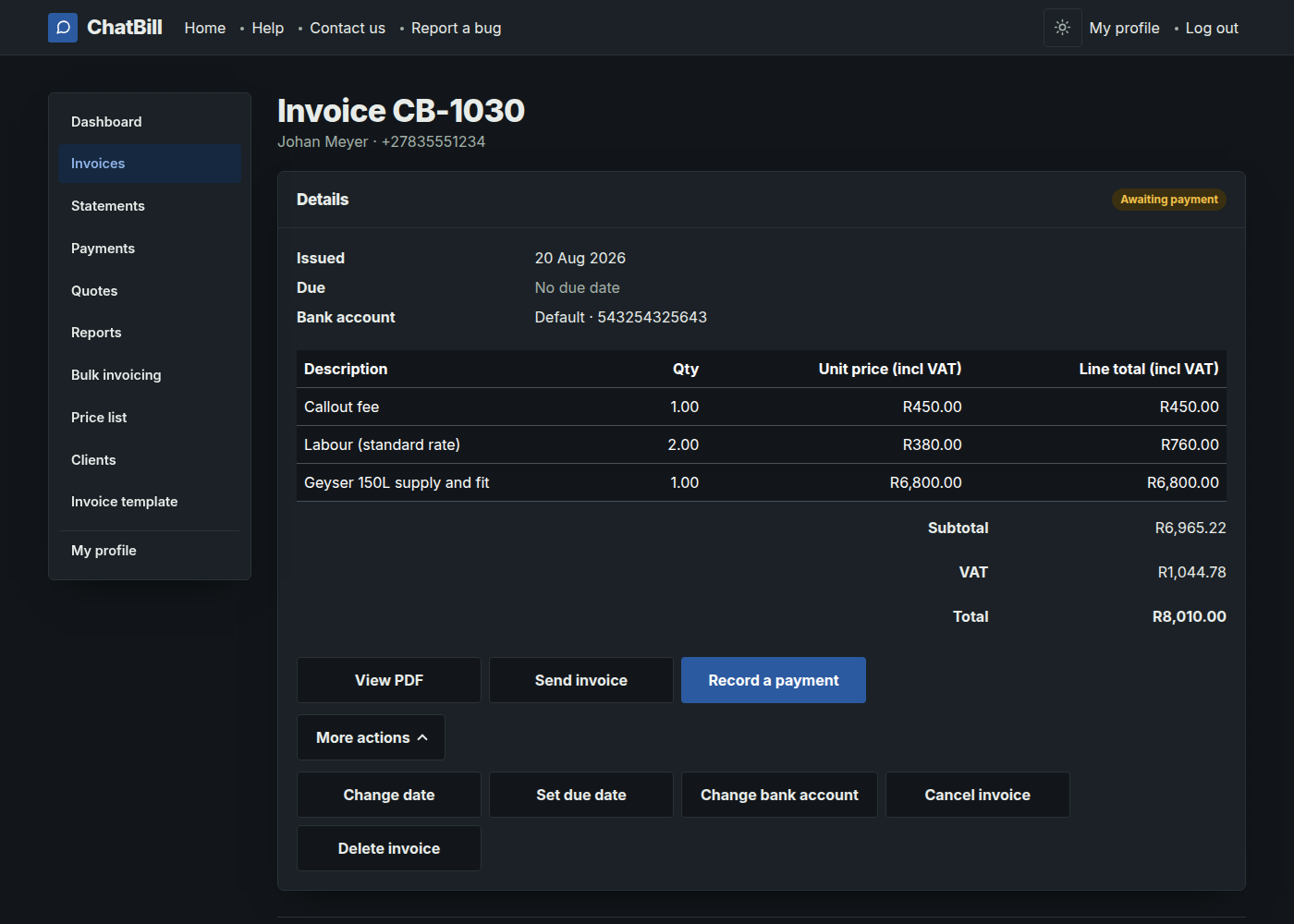
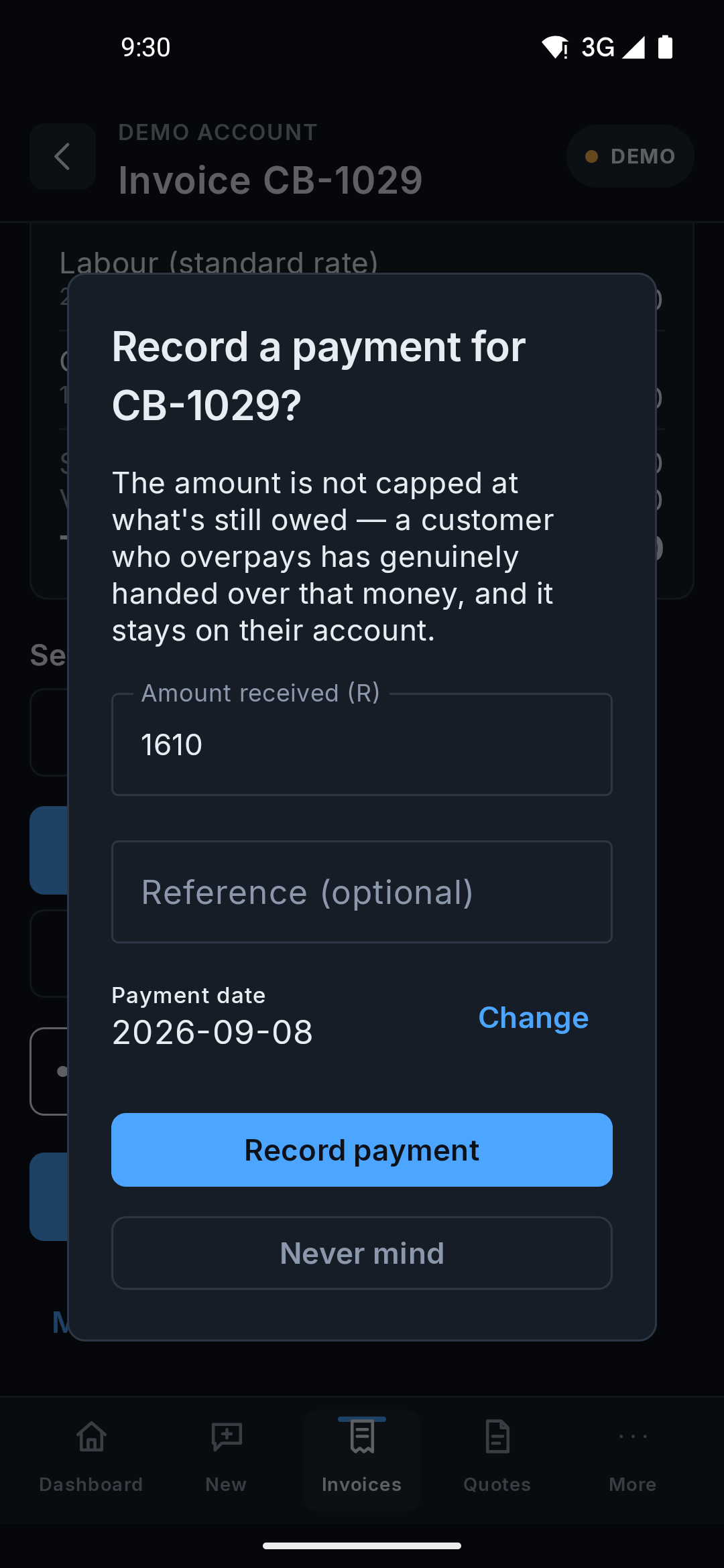
Open the invoice and tap Record a payment. The amount opens at what is still owed, so paying the lot is one tap. You are also asked for the day the money actually landed and, if you want it, a reference such as an EFT number or "cash". The date matters more than it looks: your reports and your VAT figures count the money in the month it came in, not the month you got round to tapping the button.
The invoice moves to Paid and a receipt goes into your payments ledger. If the customer already had credit on their account, that is spent first and only the rest is recorded as new money.
 Website
 Android app
 -
2. Only part of it came in
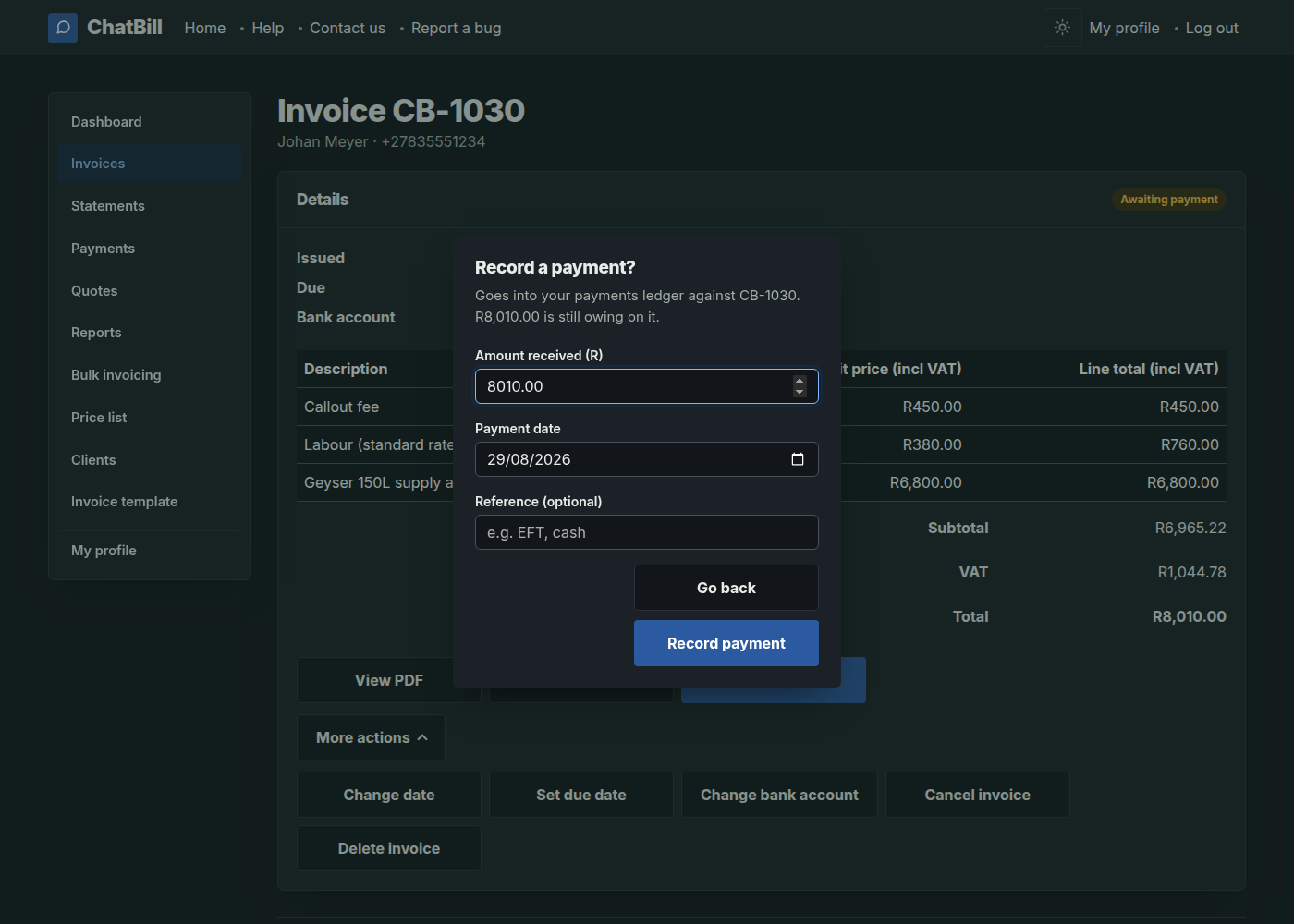
A deposit up front, or a customer paying what they can this month, is the same Record a payment button with a smaller figure typed in. Anything less than the full balance is a part payment: the invoice stays open for what is left, and the receipt shows what did come in.
On the Android app a part payment is captured against the customer instead, which is the next step. Either way it lands in the same ledger.
 Website
 -
3. What a part paid invoice looks like
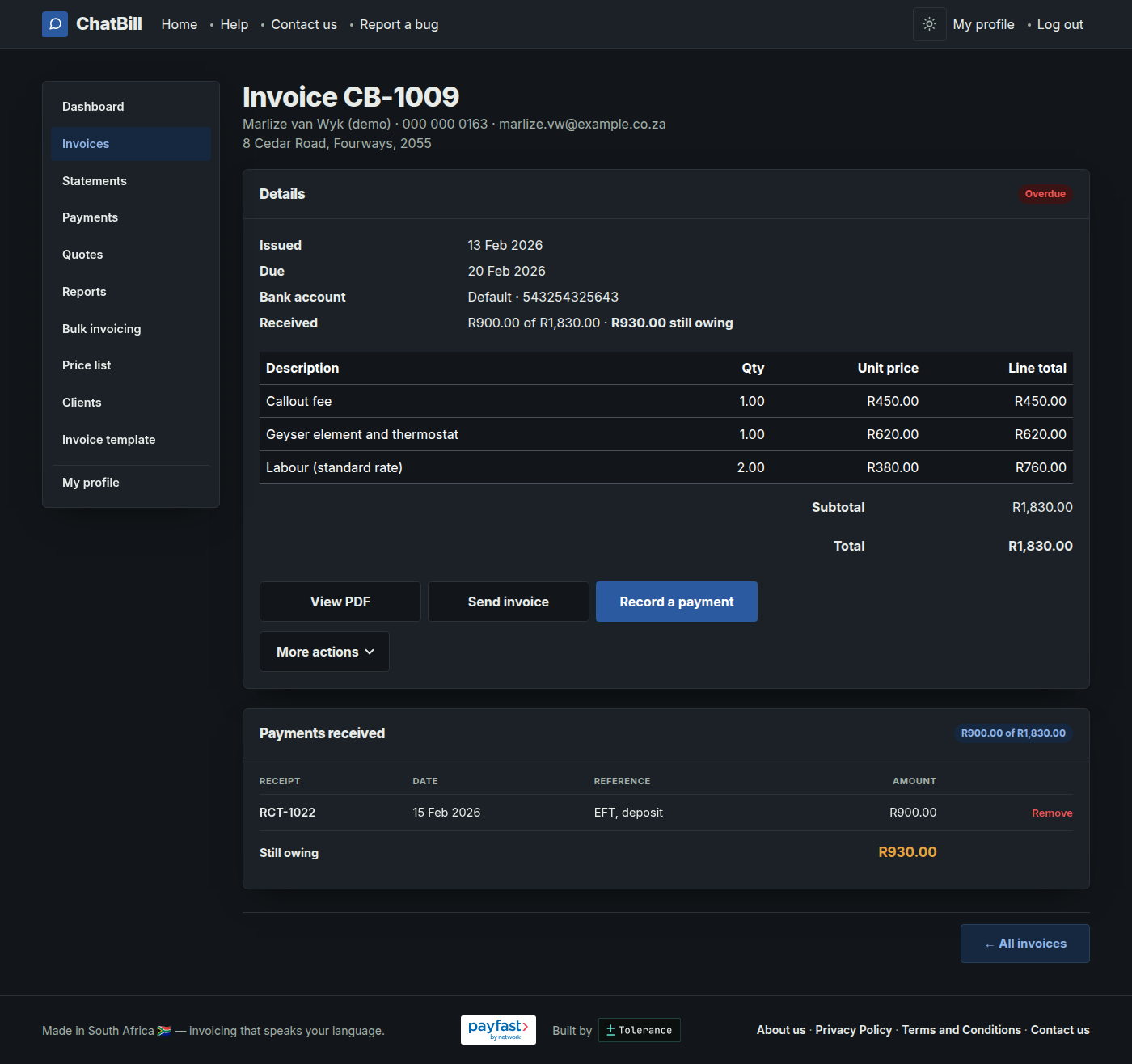
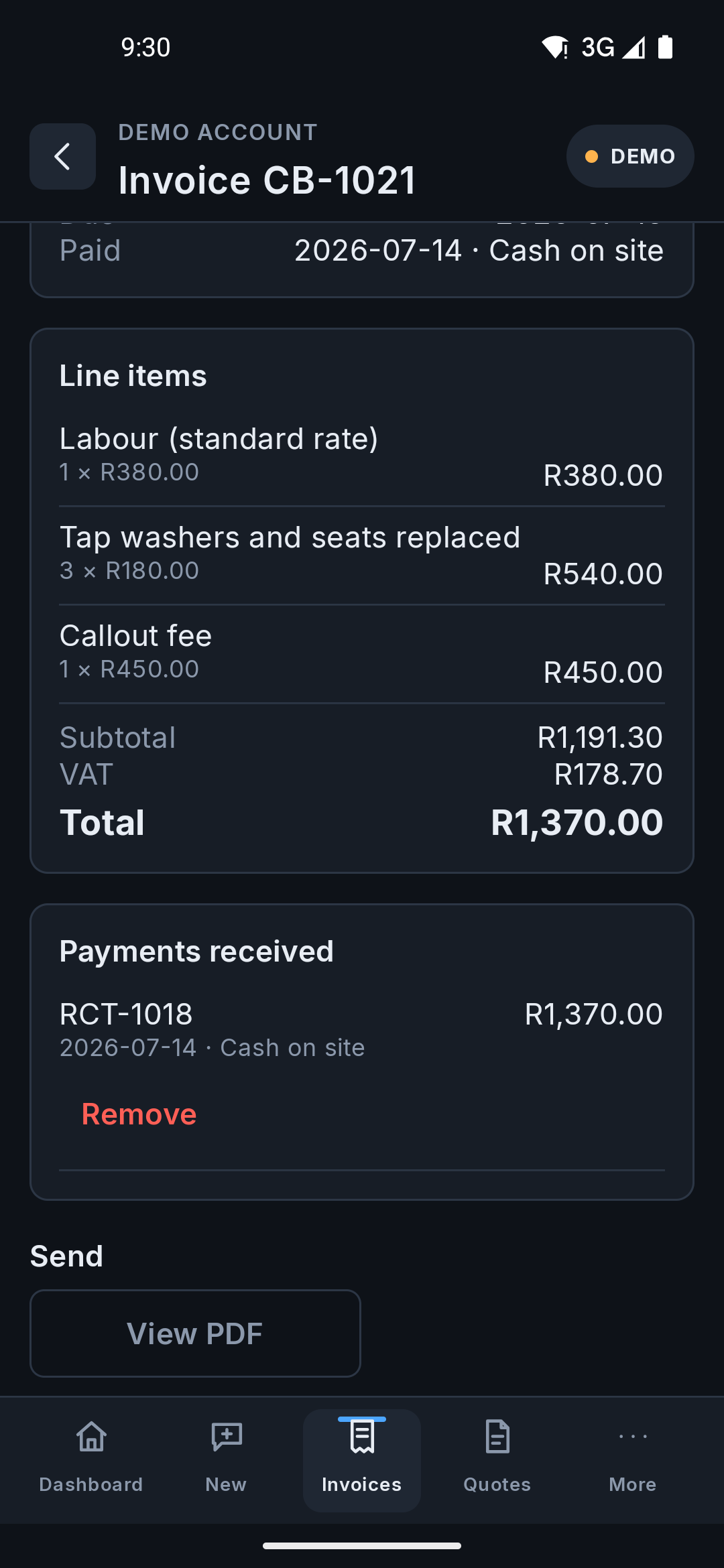
The invoice stays open and says so in money: what you have received, what the invoice was for, and what is still owing. It is not marked Paid until it is settled in full, because every report, export and PDF in ChatBill reads Paid as "this is finished".
Every payment against the invoice is listed underneath it. If you captured one in error, Remove takes it back off and puts the invoice back to awaiting payment.
 Website
 Android app
 -
4. One payment, several invoices
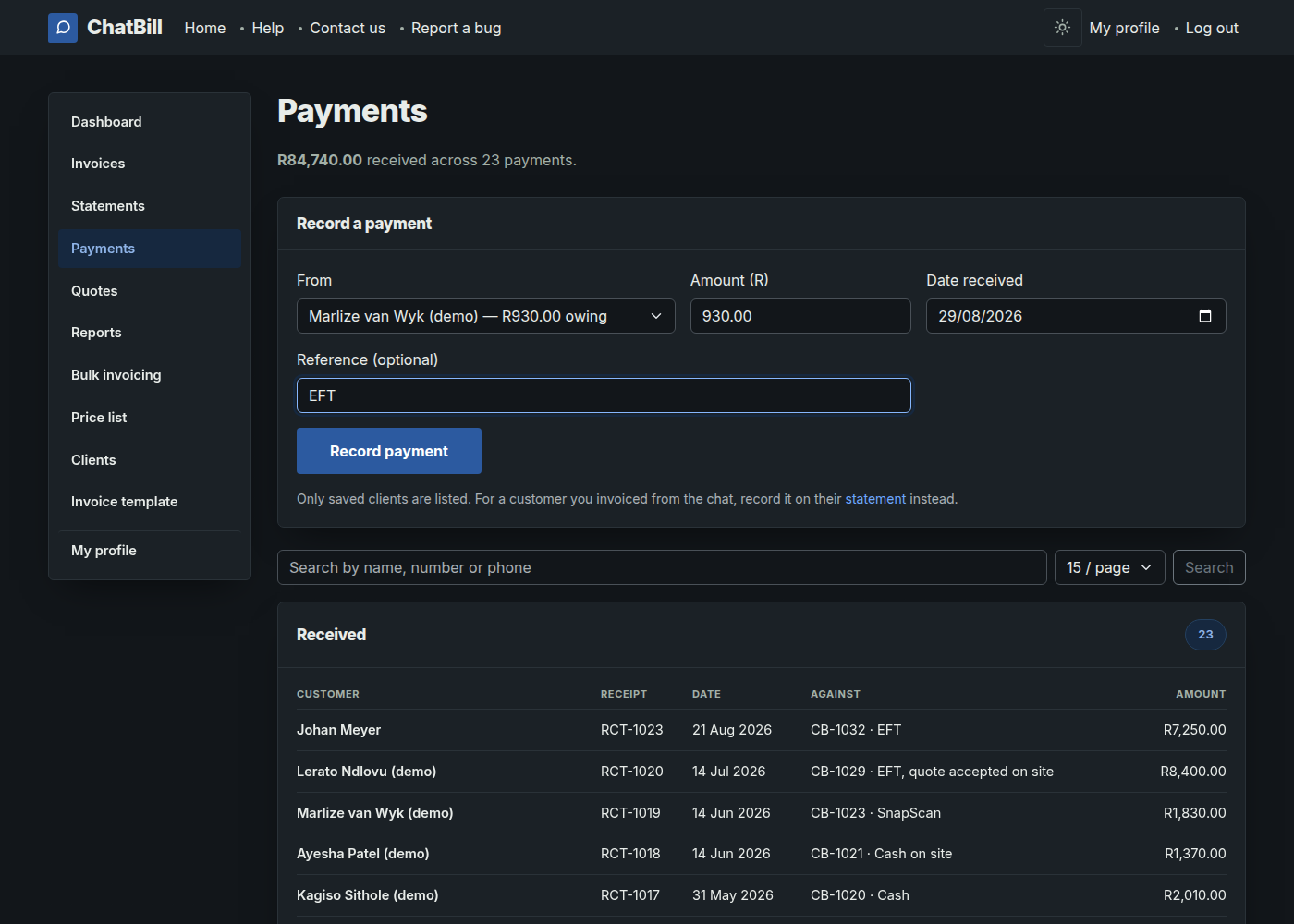
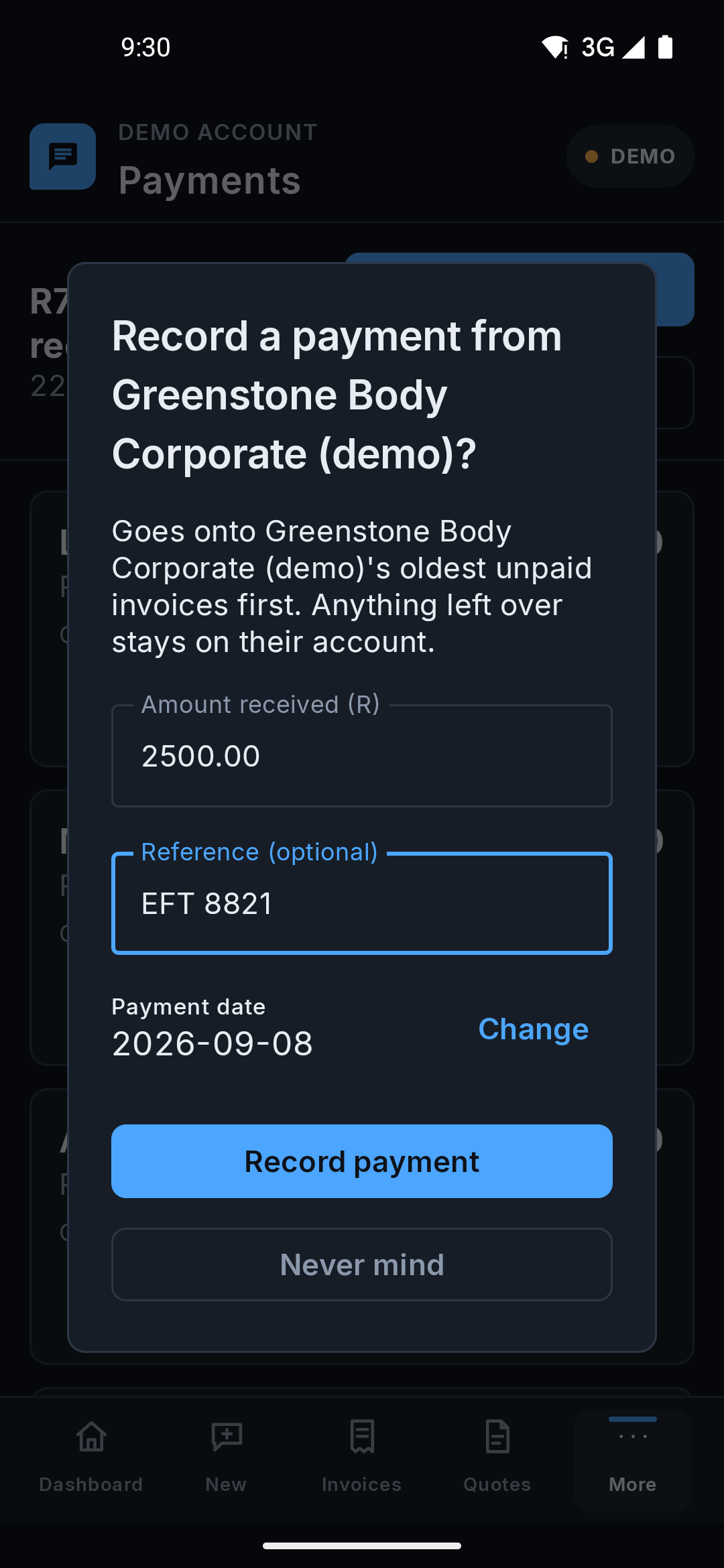
This is how an EFT usually arrives: the customer pays you a lump sum without saying which invoices it is for. Record it against the customer rather than against an invoice, from their statement or from the client list, and ChatBill spreads it over their oldest debt first.
Anything left over stays on their account as credit, ready to go against their next invoice. You do not have to work out the split yourself, and the message afterwards tells you exactly what it did.
 Website
 Android app
 -
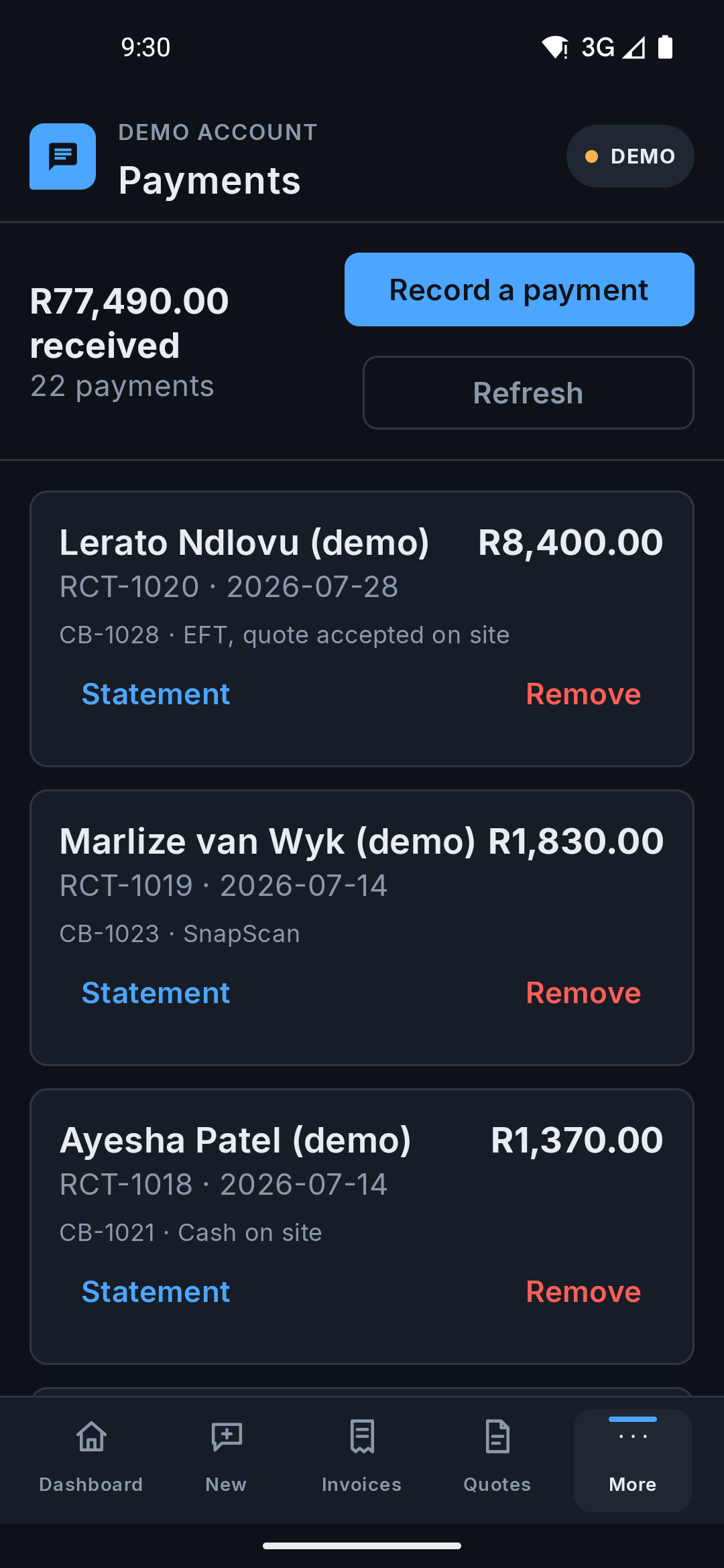
5. Every rand you have been paid
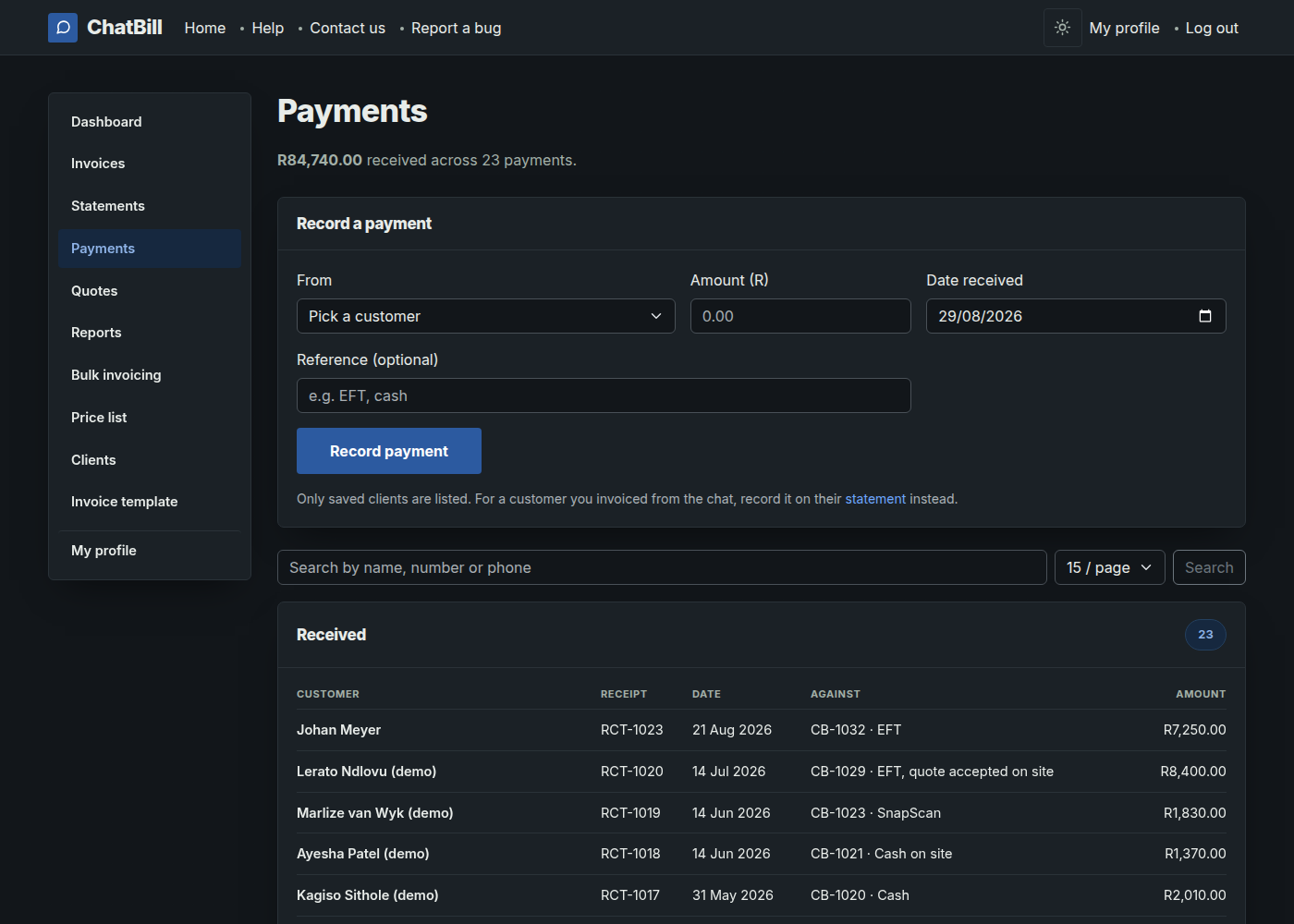
Payments is the running record: one row per payment, newest first, with what each one settled. A single EFT that cleared three invoices is one row here with all three named, not three rows, so it matches your bank statement line for line.
Removing a payment here takes the whole receipt off, including the part that went to other invoices, and puts all of them back to awaiting payment. You are asked to type "delete" first, because this is money leaving your books.
 Website
 Android app


