Bulk invoicing
A named group of clients billed the same default invoice over and over: a body corporate's monthly levy, a security company's flat fee, anything you charge the same group of people every month. A Pro feature, or part of your first two weeks on ChatBill. Each step shows the website on the left and the Android app on the right.
-
1. Open Bulk invoicing and create a group
Bulk invoicing sits in your side menu, below Reports. Give the new group a name that will still mean something to you next month, then open it to set it up.
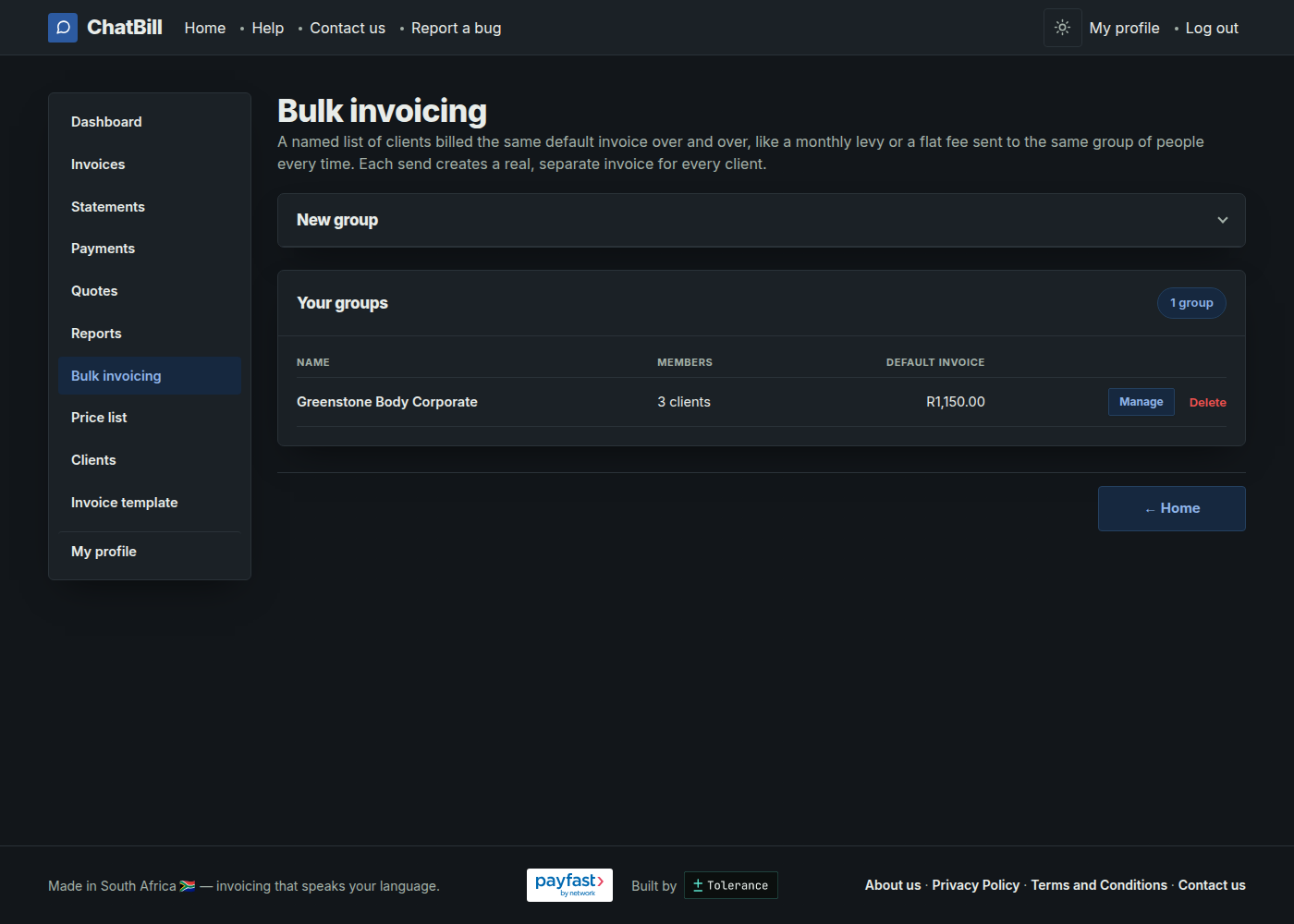 Website
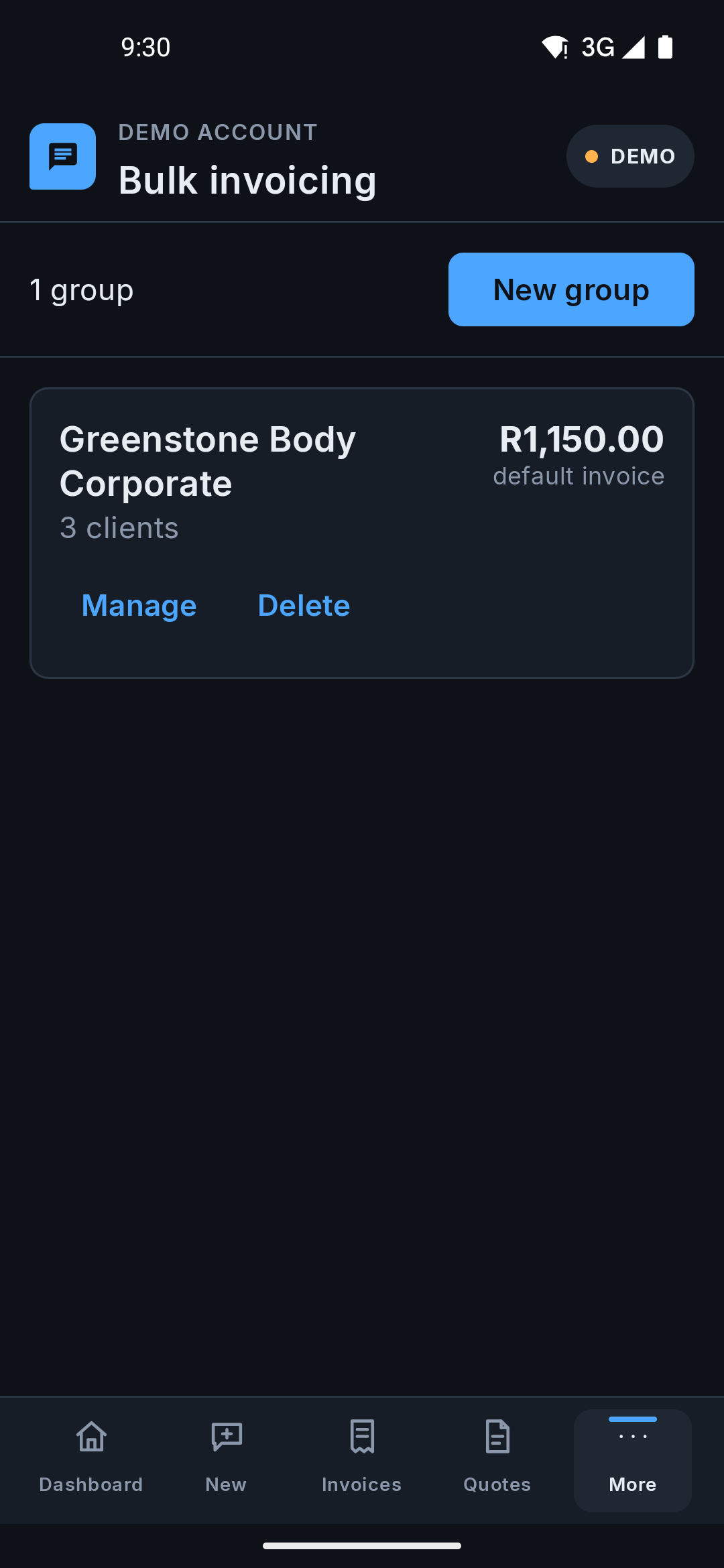 Android app
 -
2. Add a default invoice and your clients
Add lines builds the invoice every member of the group is billed, the same editable table as any other invoice: pick from your price list or type a line by hand. Then add the clients who should get it from the dropdown below.
One owner paying a different amount, like a single unit instead of a double? Give a custom invoice next to their name builds them their own, and takes them off the group's default until you switch them back with Use default instead.
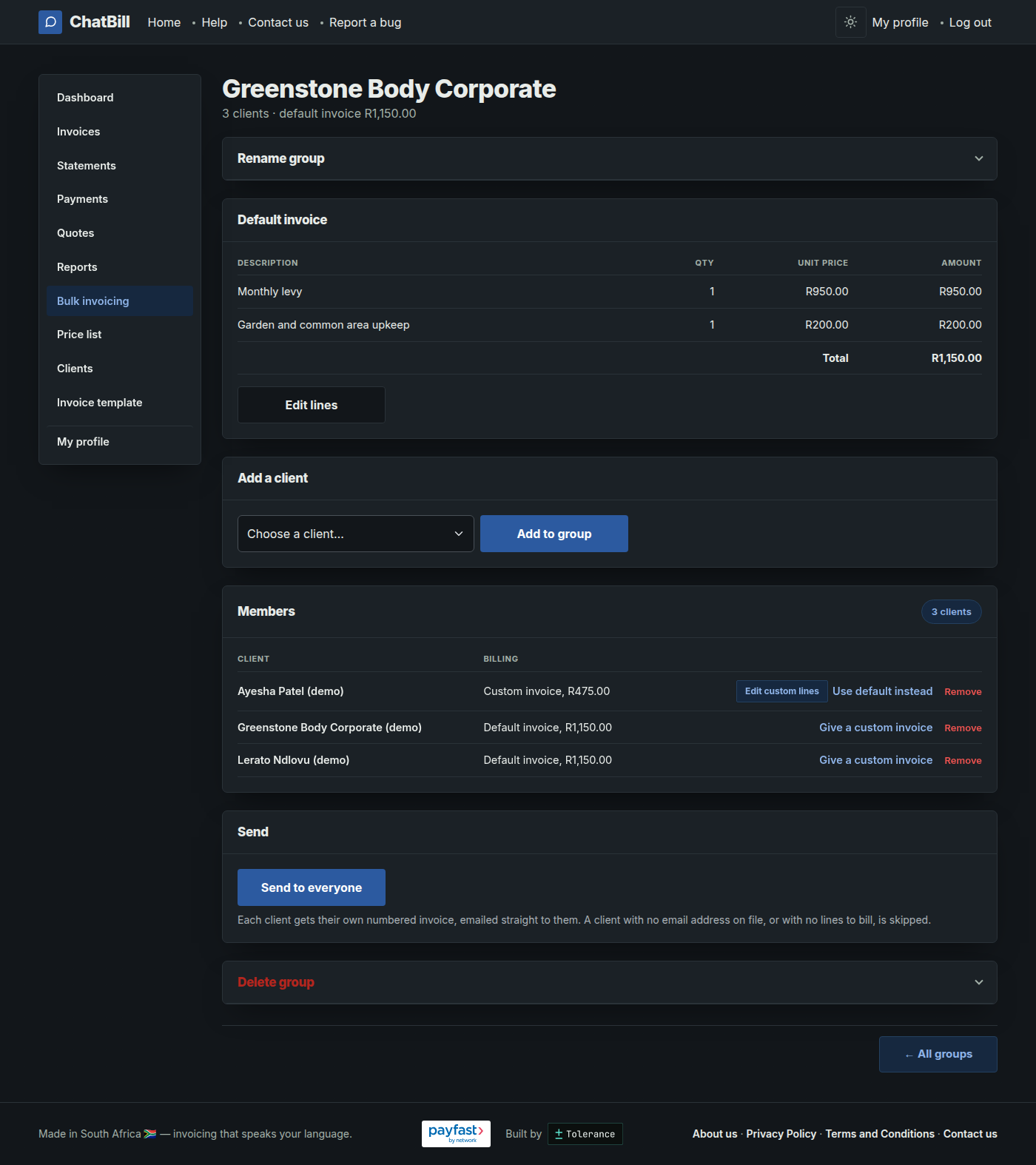 Website
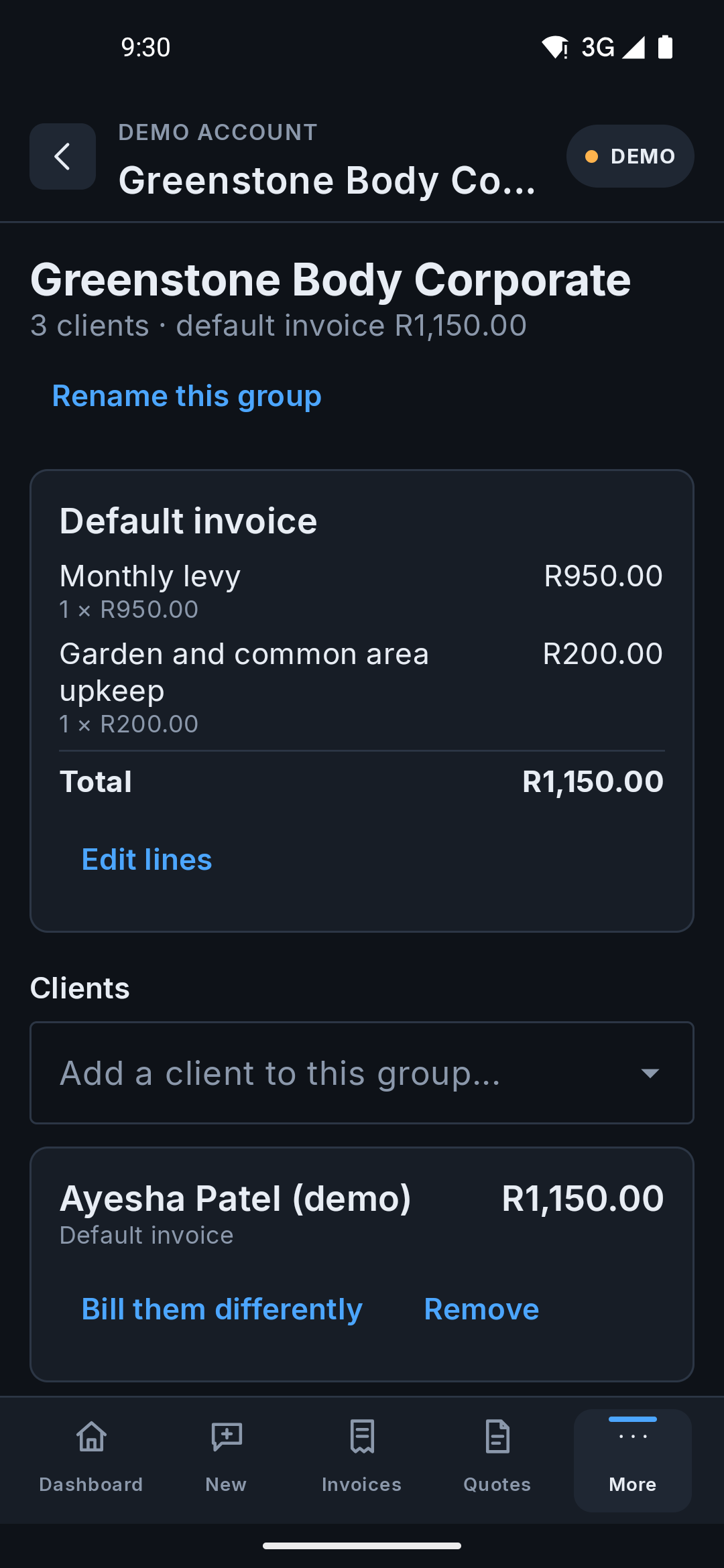 Android app
 -
3. Send to everyone
Send to everyone creates and emails a separate, properly numbered invoice to every client in the group right now, off whatever is saved above. It can't be called back, so it asks first.
A client with no email address on file, or with nothing to be billed, is skipped rather than stopping the run, and the message afterwards says who and why. Invoices already sent from a group keep their own copy of the details, so editing or deleting the group later never changes a document a customer has already received.
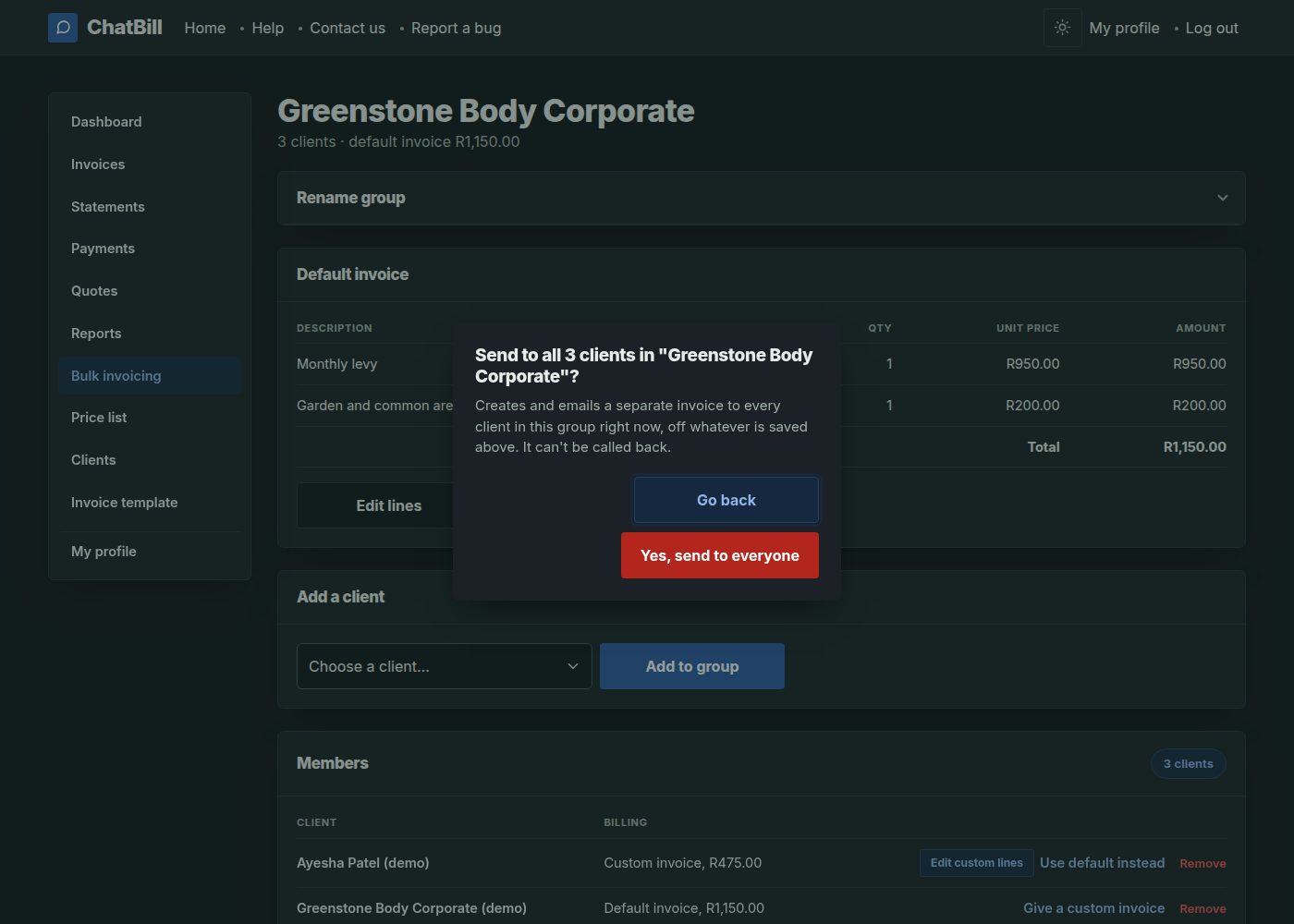 Website
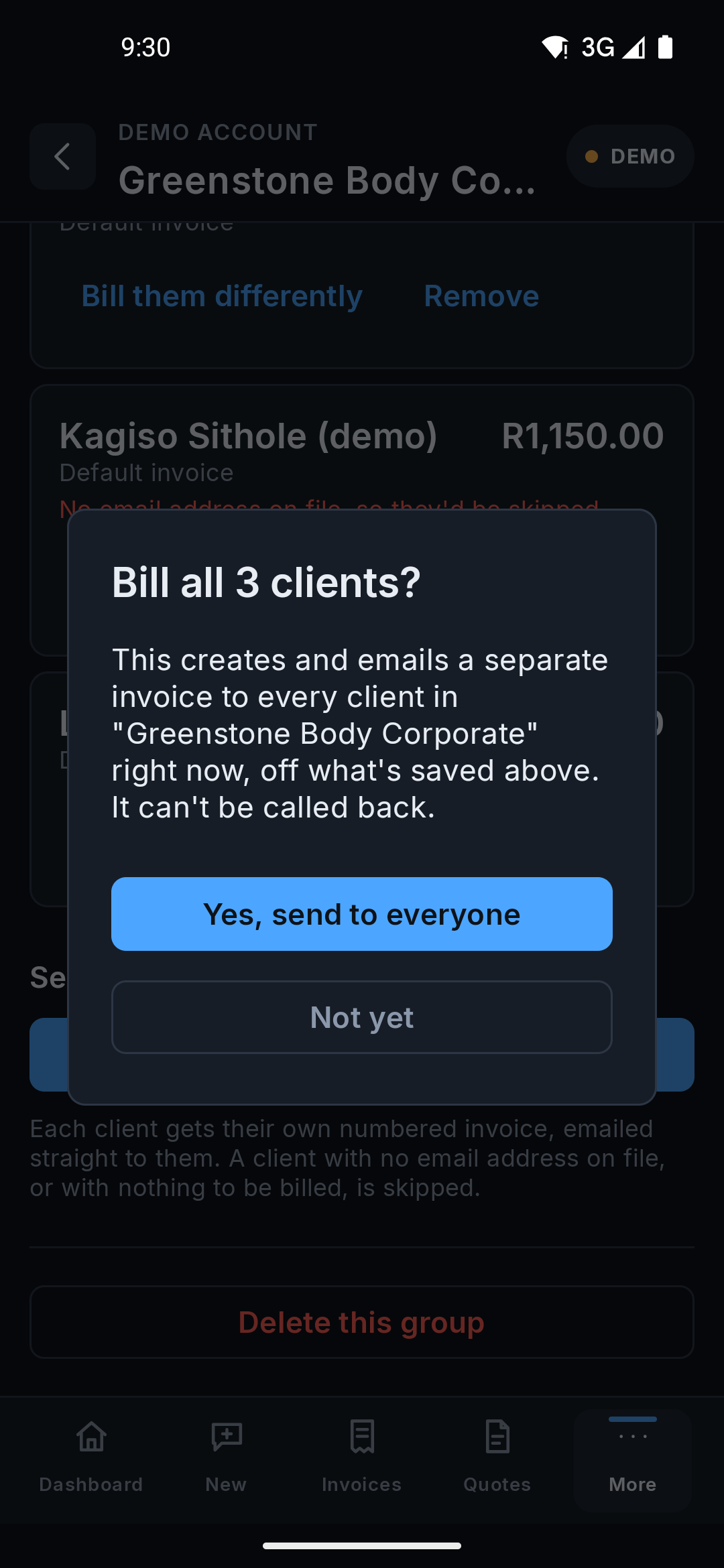 Android app


